User Management
Profile
-
View Profile Information:
- Email: Display the email address associated with your account.
- Name: Show the full name of the user.
- Roles: List the roles assigned to the user (e.g., Bot Manager, Admin, Livechat).
-
Update User Data: Click on Change to update your profile information such as name and email address. This section allows you to make changes and save them to keep your profile up-to-date.
-
Set Up Two-Factor Authentication: Enable Two-Factor Authentication (2FA) to add an extra layer of security to your account. To set it up, navigate to your profile and click Set Up 2FA. A QR code will be displayed — scan it with an authenticator app to link your account. Once scanned, enter the six-digit code generated by the app to confirm and activate 2FA.
Compatible authenticator apps include:
- Google Authenticator (iOS / Android)
- Microsoft Authenticator (iOS / Android)
- Ente Authenticator (iOS / Android)
- Any other TOTP-compatible authenticator app
-
Change Password: Update your account password. This requires entering your current password and then setting a new one.
User Management
Table Overview:
- Name: The name of the user.
- E-mail: The email address associated with the user account.
- 2FA: Indicates whether Two-Factor Authentication (2FA) is enabled for the user.
- Last Seen: The last date and time the user was active or logged in.
- Roles: Lists the roles assigned to the user, such as Bot Manager, Admin, and Livechat.
Edit user
-
Assign or Remove Roles:
- Assign Roles: Grant users new roles by selecting from the available options (e.g., Bot Manager, Admin, Livechat). Use the toggle button to enable the desired roles.
- Take Back Roles: Revoke a user’s existing roles using the same toggle functionality.
-
Delete User: Permanently delete the user’s account from the system. This action typically prompts a confirmation dialog to prevent accidental deletions.
-
Cancel: Discard any changes made during the editing session. The user will be returned to the previous state or screen without applying modifications.
-
Save: Apply and save the changes made to the user’s roles. This action updates the user's profile with the new settings.
Add user
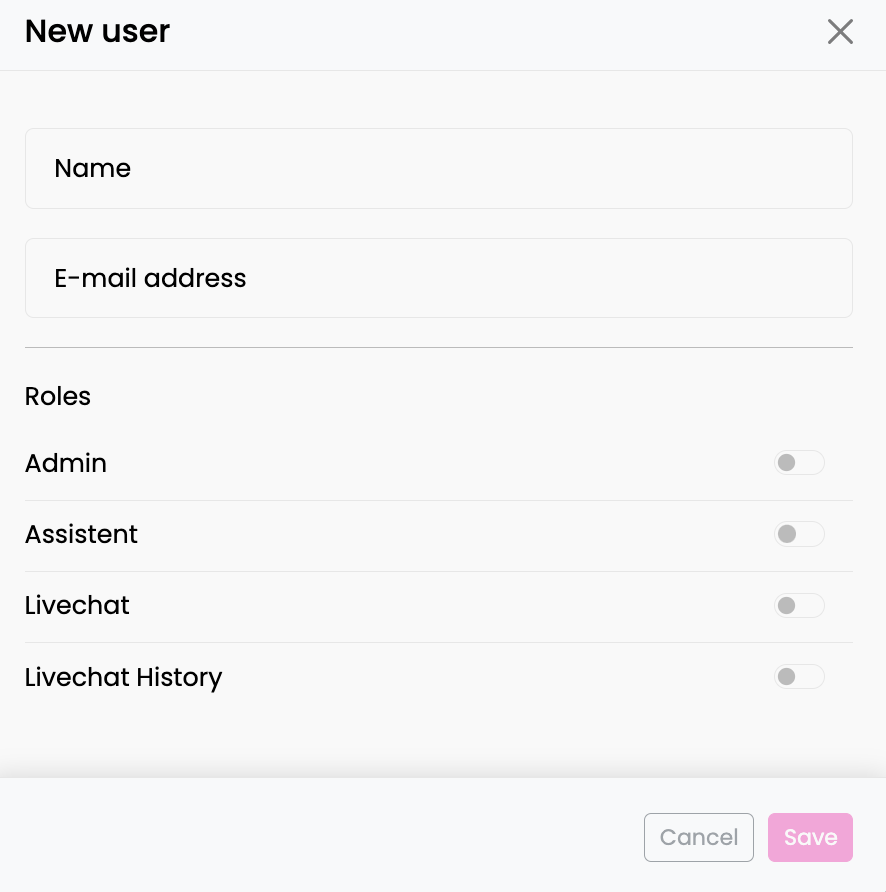
-
Add User Button: Click the Add User button located in the upper right corner of the User Management page.
-
User Information:
- Name: Enter the name of the new user.
- Email: Provide the email address for the new user. This will be used for login.
-
Assign Roles: Choose the roles to assign to the new user from the available roles. The system offers various user roles, each with specific permissions. A user can be assigned multiple roles, depending on the requirements.
Available roles and their capabilities are as follows:
Capability User Manager Assistant Livechat Livechat History Chat History Dashboard Provider Manager Backup Manager Channel Manager Livechat Manager Audit-Log Knowledge Manager Knowledge History Manage Users ✔ ✘ ✘ ✘ ✘ ✘ ✘ ✘ ✘ ✘ ✘ ✘ ✘ Edit Bots ✘ ✔ ✘ ✘ ✘ ✘ ✘ ✘ ✘ ✘ ✘ ✘ ✘ Manage Knowledge Base ✘ ✔ ✘ ✘ ✘ ✘ ✘ ✘ ✘ ✘ ✘ ✘ ✘ Access Knowledge manager Interface ✘ ✘ ✘ ✘ ✘ ✘ ✘ ✘ ✘ ✘ ✘ ✔ ✘ Knowledge Base Histories¹ ✘ ✘ ✘ ✘ ✔ ✘ ✘ ✘ ✘ ✘ ✘ ✘ ✔ Read Chat Histories² ✘ ✔ ✘ ✘ ✔ ✘ ✘ ✘ ✘ ✘ ✘ ✘ ✘ Create API Keys ✘ ✔ ✘ ✘ ✘ ✘ ✘ ✘ ✘ ✘ ✘ ✘ ✘ Manage LLM Providers ✘ ✔ ✘ ✘ ✘ ✘ ✔ ✘ ✘ ✘ ✘ ✘ ✘ Access Livechat Interface ✘ ✘ ✔ ✘ ✘ ✘ ✘ ✘ ✘ ✘ ✘ ✘ ✘ Act as Livechat-Agent ✘ ✘ ✔ ✘ ✘ ✘ ✘ ✘ ✘ ✘ ✘ ✘ ✘ View Livechat History ✘ ✘ ✘ ✔ ✘ ✘ ✘ ✘ ✘ ✘ ✘ ✘ ✘ Manage Livechat Settings ✘ ✘ ✘ ✘ ✘ ✘ ✘ ✘ ✘ ✔ ✘ ✘ ✘ View Audit Logs ✘ ✘ ✘ ✘ ✘ ✘ ✘ ✘ ✘ ✘ ✔ ✘ ✘ Analytics ✘ ✔ ✔ ✔ ✔ ✔ ✔ ✔ ✔ ✔ ✘ ✘ ✔ Manage Bot Versions ✘ ✘ ✘ ✘ ✘ ✘ ✘ ✔ ✘ ✘ ✘ ✘ ✘ Manage Channels ✘ ✘ ✘ ✘ ✘ ✘ ✘ ✘ ✔ ✘ ✘ ✘ ✘ ¹ The Knowledge History role only grants access to Knowledge Base History data when combined with the Chat History role.
² This does not include parts of conversations conducted through livechat.
-
Click Save to create the new user account with the specified information and roles. The new user will be added to the Users Table and can start using the system based on the assigned roles.
Logout
Clicking the Logout button will sign you out of your account and terminate the current session.