Phone Channel
The Phone Channel enables your bot to interact with users through voice calls. It integrates Speech-to-Text (STT) for understanding spoken input and Text-to-Speech (TTS) for delivering spoken responses, creating a natural conversational experience over the phone.
Key Features
- Speech-to-Text (STT): Convert user speech to text using providers like Azure Speech Services, Google Speech-to-Text, or botario Speech
- Text-to-Speech (TTS): Convert bot responses to natural speech using providers like Google TTS, Azure TTS, ElevenLabs, or botario TTS
- Call Control: Manage calls with hangup, forward, and recording capabilities
- Text Normalization: Optimize bot responses for natural spoken output
- Outbound Calls: Initiate calls programmatically via API
- Phone Blocking: Block specific numbers, prefixes, or ranges
- DTMF Support: Accept touch-tone input for menu navigation
Prerequisites
Before enabling the Phone Channel, ensure you have:
- STT Provider configured - At least one Speech-to-Text provider set up in Bot > Providers
- TTS Provider configured - At least one Text-to-Speech provider set up in Bot > Providers
- PhoneServer connection - Your instance connected to a PhoneServer (shown in the header status)
- Start conversation flow - A flow assigned to handle incoming calls
Quick Start
Step 1: Create Speech Providers
Navigate to Bot > Providers and create at least one STT and one TTS provider:
- Click Create button
- Select Speech-to-Text or Text-to-Speech as Provider type
- Choose your provider (Azure, Google, ElevenLabs, or botario)
- Enter your API credentials
- Click Create
See Speech-to-Text Configuration and Text-to-Speech Configuration for detailed setup.
Step 2: Enable Phone Channel
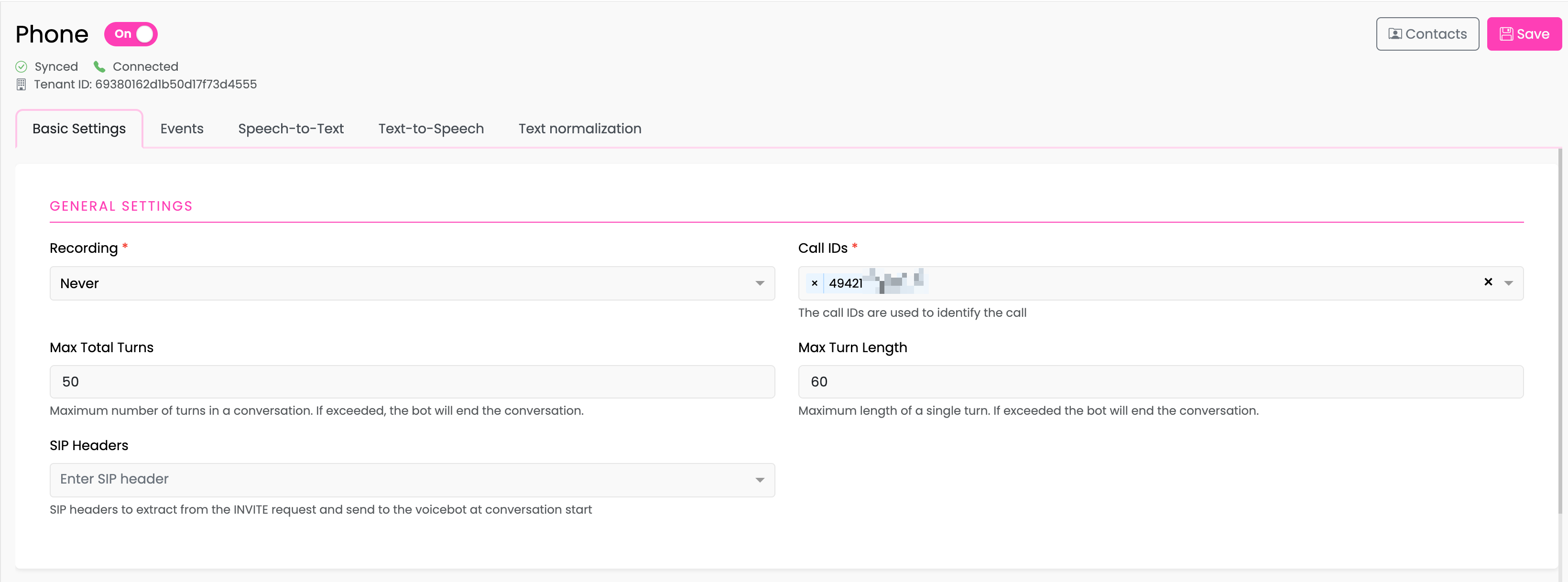
- Navigate to Channels > Phone
- Toggle the Phone switch to On
- Verify the connection status shows Synced and Connected
Step 3: Configure Basic Settings
In the Basic Settings tab:
- Set your Recording preference (Never, When Requested, or Always)
- Configure Call IDs to identify your phone line
- Optionally set Max Total Turns and Max Turn Length limits
See Basic Settings for all configuration options.
Step 4: Assign Event Flows
In the Events tab:
- Select a flow for Start conversation (required) - This flow runs when a call begins
- Optionally assign flows for other events (Empty message, Hangup, Error)
See Phone Events for details on each event type.
Step 5: Configure STT and TTS
- In the Speech-to-Text tab, select your STT provider and configure language settings
- In the Text-to-Speech tab, select your TTS provider and configure voice settings
Step 6: Save Configuration
Click Save to apply your phone channel configuration. The PhoneServer will sync with your settings.
Status Indicators
The phone channel header displays important status information:
| Indicator | Meaning |
|---|---|
| Synced | Phone configuration is synchronized with the PhoneServer |
| Connected | PhoneServer is connected and ready to handle calls |
| Pending | Configuration changes are being synchronized |
| Failed | Sync failed - check provider configuration |
Documentation Sections
| Section | Description |
|---|---|
| Basic Settings | Recording, call limits, and phone blocking |
| Phone Events | Configure flows for phone call events |
| Speech-to-Text | STT provider setup and configuration |
| Text-to-Speech | TTS provider setup and configuration |
| Text Normalization | Optimize responses for spoken output |
| Outbound Calls | Initiate calls via API |
| PhoneServer Providers | Monitor provider sync status |
| Phone API Reference | Developer reference for phone methods |
Troubleshooting
Phone Channel Won't Enable
- Ensure at least one STT and one TTS provider are configured
- Check that providers are enabled for the bot in Bot Settings
- Verify the Start conversation event has a flow assigned
Calls Not Connecting
- Check PhoneServer connection status (should show "Connected")
- Verify Call IDs are correctly configured
- Check that providers show "Synced" status
Poor Speech Recognition
- Try adjusting the Start Listening Offset in STT settings
- Consider enabling Dictation mode for longer utterances (Azure)
- Check language settings match your users' language
Unnatural Speech Output
- Enable Text Normalization for dates, numbers, and abbreviations
- Adjust Speaking Rate in TTS settings
- Try different TTS providers or voices for better quality