Settings
Customize the bot's general settings:
- Name: The bot's display name
- Description: A brief description of the bot's purpose
- Visual Tag: Indicates the deployment stage (DEV, STAGING, PROD)
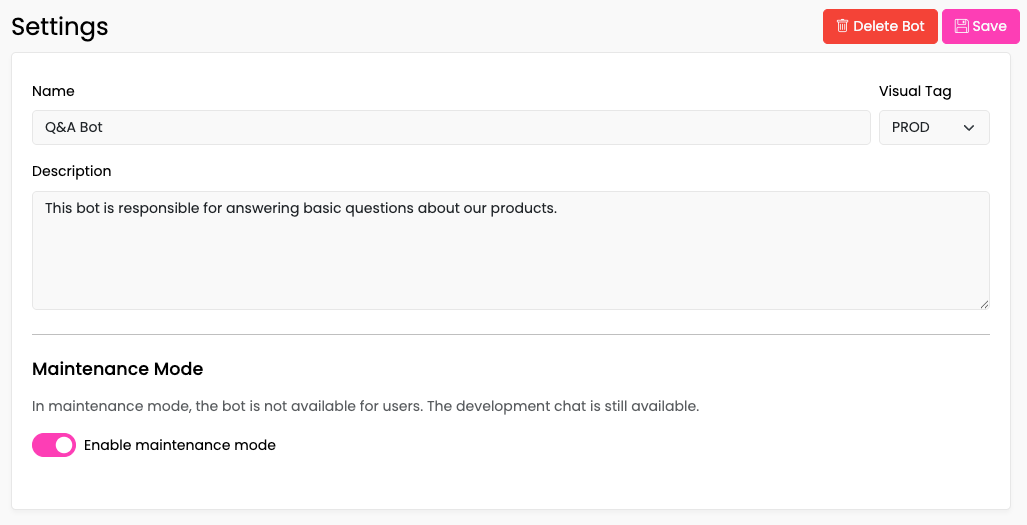
Visual tags help manage multiple bot copies (e.g., a stable production version alongside a development version). See the Versions section for creating and managing bot copies.
Click Save after making changes. Use Delete to permanently remove the bot and all associated data.
Maintenance Mode
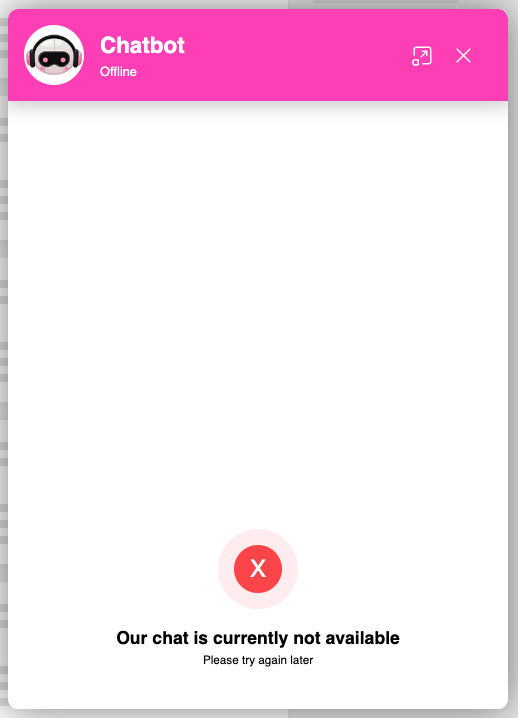
Enable the Maintenance Mode checkbox to temporarily disable public access to the bot:
| Channel | Behavior |
|---|---|
| Embedded (website) | Bot appears offline; users see an error message |
| Phone | Calls are answered with a configurable message (see Phone Channel Basic Settings) |
| Development Chat | Remains fully functional for testing |
This allows you to prevent public usage while still using the Development Chat for development and testing.
Service Token Permissions
Define which rights the backend service receives via its token. These permissions control what the internal agent service is allowed to access on behalf of the bot.
| Permission | Description |
|---|---|
| Live chat history | Allows the backend service to read the live chat conversation history |
Enable the desired permissions using the toggles and click Save.
Bot Persona
The Bot Persona field lets you define your bot's personality and communication style. Enter a description of how the bot should present itself — its tone, character, and behavior.
The persona is automatically applied to all agent responses, ensuring consistent behavior across:
- Response Nodes — LLM-generated replies
- Knowledge Nodes — answers drawn from knowledge bases
- Form Nodes — interactions during data collection
- Orchestrator — routing decisions and fallback responses
Enter your persona description in the Bot Persona text field and click Save.