Versions
You can create copies of your bot, which can be useful if you need to develop new features without affecting the live bot, test changes in a separate environment before deployment, or maintain multiple versions for different purposes, such as development, staging, and production. This approach allows you to manage and refine your bot effectively while keeping your current version stable.
Create a version
To create a copy of your bot, press on Create in the upper-right corner. Creating a copy of your bot will automatically generate a new version and add it to the list of created versions. This entry will include details such as the date and time of creation and the user who created the version. You can sort the list to view the most recent versions.
Add a comment
You can add a comment to the new version to provide additional context or notes. This comment will be associated with the version and can help you or other users understand the purpose or changes made in that particular version.
To add a comment to a version, click on the version in the list, type your comment in the provided field, and then click Save comment to store it. If you decide not to add a comment, you can click Delete to discard the entry.
Distribute Version
- Click Distribute Version button in the upper-right corner.
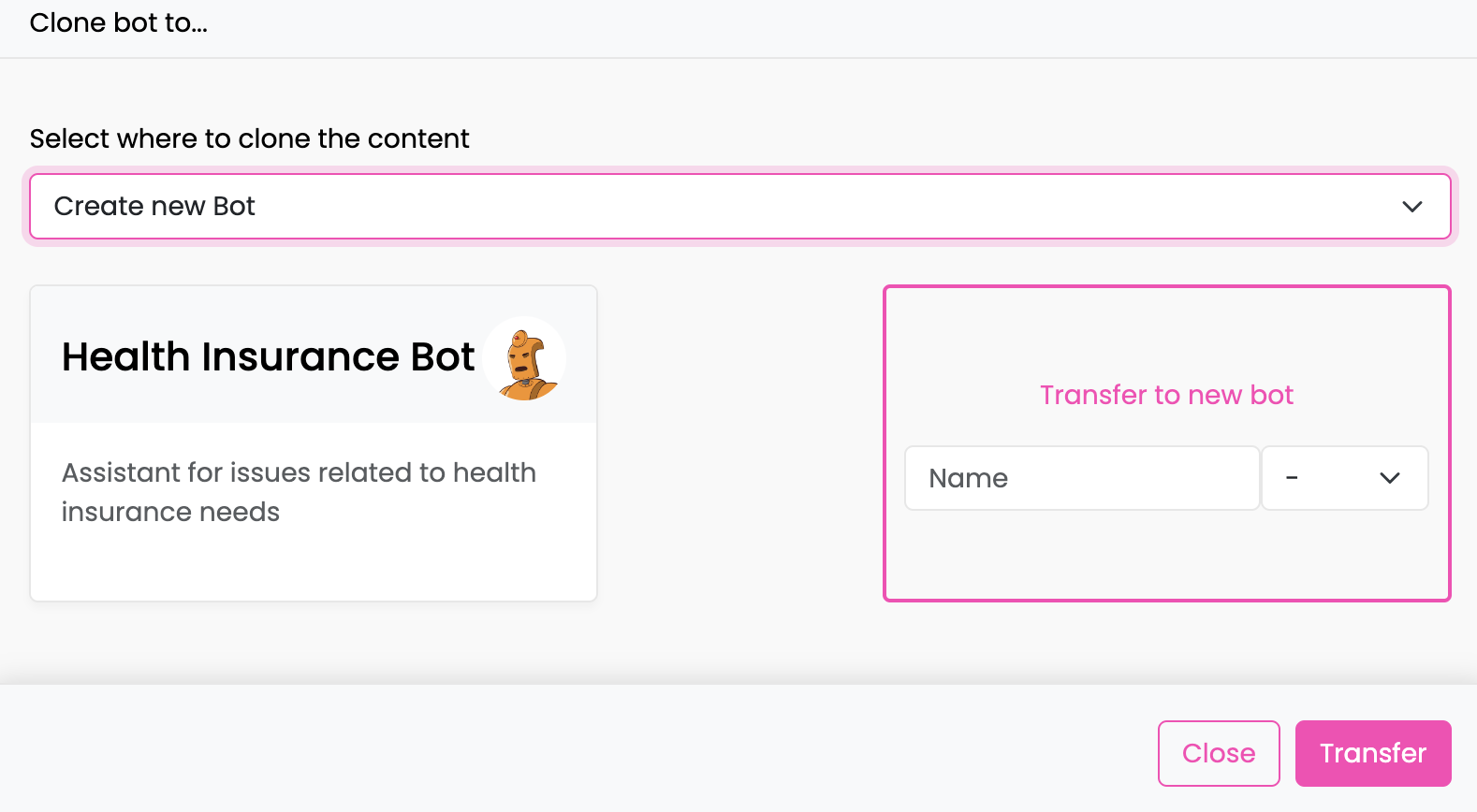
- Choose Destination for Cloning: Select where you want to clone the content. You have two options:
- Create new Bot: Clone the content to a new bot. Enter a name for the new bot and choose a visual tag from the drop-down list.
- Existing Bot: Clone the content to an already existing bot. Select the desired bot from the drop-down list.
The bot's content such as scripts, flows, and knowledge will be replaced (overwritten) during a restore.
However, other elements such as Analytics, Website, Story, Settings, and API-Keys will not be affected.
Read-only documents in the knowledge base will not retain their read-only status in the destination bot and must be re-applied manually.
- Confirm by clicking Transfer or select Cancel button, if you wish to cancel the distribution process.
Restore
If you made changes to a copied bot and did some changes that didn’t work out, you might want to go back to the previous copied version. Since the original bot has also been changed, you can't just copy it again. Instead, you can use the Restore feature to revert to the earlier version you saved.
Whenever an existing bot version is overwritten by another bot, the system automatically creates a backup of the original bot. This ensures that no data is lost during the overwrite process, and users can always revert to the previous version if needed. If you want to restore the version that was available before transfer, go to Version management, select an automatically created backup version, click restore.