Text Normalization
What is Text Normalization?
Text Normalization is a feature that transforms bot responses into a format optimized for Text-to-Speech (TTS) systems. It converts written text into a form that sounds natural when spoken aloud, ensuring that dates, phone numbers, abbreviations, and other special formats are pronounced correctly by the TTS engine.
Without text normalization, a TTS system might incorrectly pronounce "01.08.2023" as "zero one dot zero eight dot two zero two three" or struggle with phone numbers and technical terms. Text normalization solves this by converting such text into formats that TTS engines can handle properly.
Why is it Important?
When users interact with your bot through a phone channel, the quality of the spoken output is crucial for a good user experience. Text normalization ensures that:
- Dates are spoken naturally (e.g., "the first of August, twenty twenty-three")
- Phone numbers and IBANs are read digit by digit with proper spacing
- Technical terms and abbreviations are spelled out character by character when needed
- Currency amounts are pronounced correctly
- Numbers are converted to their word equivalents when appropriate
How Text Normalization Behaves
Text normalization operates during the bot response phase, after the LLM generates a response but before it's sent to the Text-to-Speech engine. The process works in two stages:
Stage 1: LLM Tagging (Optional)
When the System Prompt is enabled, the LLM is instructed to tag certain content in its responses using special XML-like tags:
<date>01.08.2023</date>- for dates in various formats<literal>042165838493</literal>- for content that should be read character by character
This stage is optional and controlled by the Prompt Enabled toggle in the General Settings.
Stage 2: Normalization Processing
The text normalizer processes the bot's response according to the enabled rules:
- Detects tagged content - Processes any
<date>and<literal>tags added by the LLM - Applies normalization rules - Converts numbers, currency, times, etc. based on enabled rules
- Applies synonyms - Replaces words according to the custom dictionary
- Outputs normalized text – The result is stored in the
normalized_textfield of the BotUtteredEvent, which is then used by the phone server.
The normalization only occurs when all conditions are met (system enabled, node enabled, function enabled), as explained in the hierarchy section below.
Phone Channel Settings
To configure text normalization, navigate to the Phone channel in your bot's configuration panel. The text normalization settings are organized into several sections.
General Settings
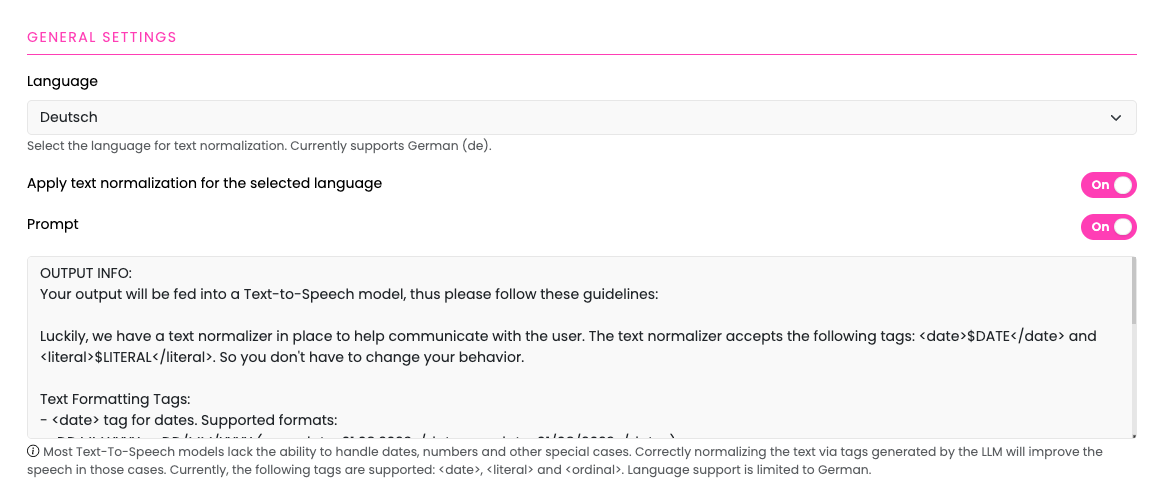
Enable Text Normalization
The master toggle ("Apply text normalization for the selected language") enables or disables the entire text normalization system for this language. When this is disabled, no normalization will occur, regardless of other settings.
Language
Currently, text normalization supports only German (de).
System Prompt
The system prompt instructs the LLM on how to format its responses for optimal TTS output. When Prompt Enabled is active, this prompt is automatically added to the LLM's system message.
Default System Prompt:
OUTPUT INFO:
Your output will be fed into a Text-to-Speech model, thus please follow these guidelines:

Luckily, we have a text normalizer in place to help communicate with the user. The text normalizer accepts the following tags: <date>$DATE</date> and <literal>$LITERAL</literal>. So you don't have to change your behavior.

Text Formatting Tags:
- <date> tag for dates. Supported formats:
  • DD.MM.YYYY or DD/MM/YYYY (e.g., <date>01.08.2023</date> or <date>01/08/2023</date>)
  • DD.MM.YY or DD/MM/YY with short year (e.g., <date>01.08.23</date>)
  • MM/YYYY or MM/YY for credit card expiry (e.g., <date>06/27</date>)
- <literal> tag for anything where each character or digit must be spelled out individually. Use for EVERY initialism BUT NOT abbreviation or acronym (e.g. <literal>CDU</literal>, <literal>GPT</literal>, <literal>DPD</literal>, but not NASA, GIF etc.), version numbers (e.g. <literal>3.2.101</literal>), license plates (e.g. <literal>HB-CE-349</literal>), error codes (e.g. <literal>HTTPS 404</literal>), ibans (e.g. <literal>DE93 3845 7384 7573 2253 12</literal>), telephone numbers (e.g. <literal>042165838493</literal>) etc.

Important Rules:
- Ordinal numbers should be written out in full words (e.g., write "der zwölfte Platz" instead of "der 12. Platz")
- Keep all other numbers in their standard numeric format (e.g., "5 Äpfel", "100 Euro", "das Jahr 2024")
- Tool calls and their outputs are NOT sent to Text-to-Speech - therefore, do not use any formatting tags (<date>, <literal>, etc.) within tool call parameters or when processing tool call results
- Only apply these formatting tags to the final text that will be spoken to the user
You can customize this prompt to fit your specific use case. For example, you might add instructions for industry-specific terminology or adjust the guidelines for your bot's communication style.
Toggle Prompt Enabled controls whether this prompt is added to the LLM's system message. Disable this if you want to use only the rule-based normalization without LLM tagging.
Synonyms

The Synonyms feature lets you define custom replacements for specific words or phrases. This can help you tailor your bot’s speech output for your use case.
Here are some example use cases:
- Branding: Replace "ABC telecom" with "A B C Telekommunikation".
- Acronyms as words: Replace "NATO" with "Nah-toh".
- Standardize abbreviations: Replace "z.B." with "zum Beispiel".
You can use Synonyms for almost any kind of routine replacement where default pronunciations aren’t correct, or where a certain output format is needed.
How to Add Synonyms
- Click Add Synonym in the Synonyms section
- Enter the Key (the word to be replaced)
- Enter the Value (the replacement word/phrase)
- Toggle Synonyms Enabled to activate the feature
Synonyms are applied after all rule-based normalization, so they work on the text after dates, numbers, and other rules have been processed.
Function-Specific Settings
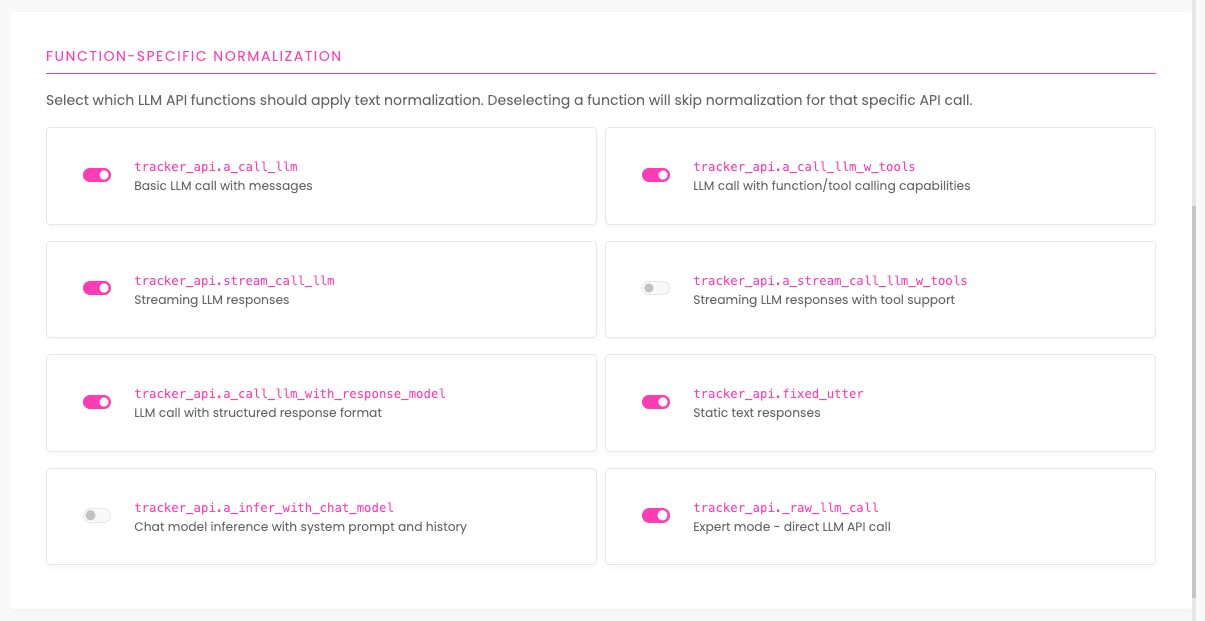
Text normalization can be enabled or disabled for specific LLM API functions. This gives you fine-grained control over which types of bot responses get normalized.
Available Functions
a_call_llm: Standard LLM calls without toolsa_call_llm_w_tools: LLM calls with tool/function calling enableda_infer_with_chat_model: Chat model inference callsstream_call_llm: Streaming LLM responsesa_stream_call_llm_w_tools: Streaming LLM responses with tools_raw_llm_call: Low-level direct LLM API callsa_call_llm_with_response_model: LLM calls with structured response modelsfixed_utter: Fixed utterances from Response nodes and script-based outputs
Each function can be toggled independently. For example, you might enable normalization for fixed_utter (Response nodes) but disable it for _raw_llm_call if you have custom processing for those responses.
Normalization Rules
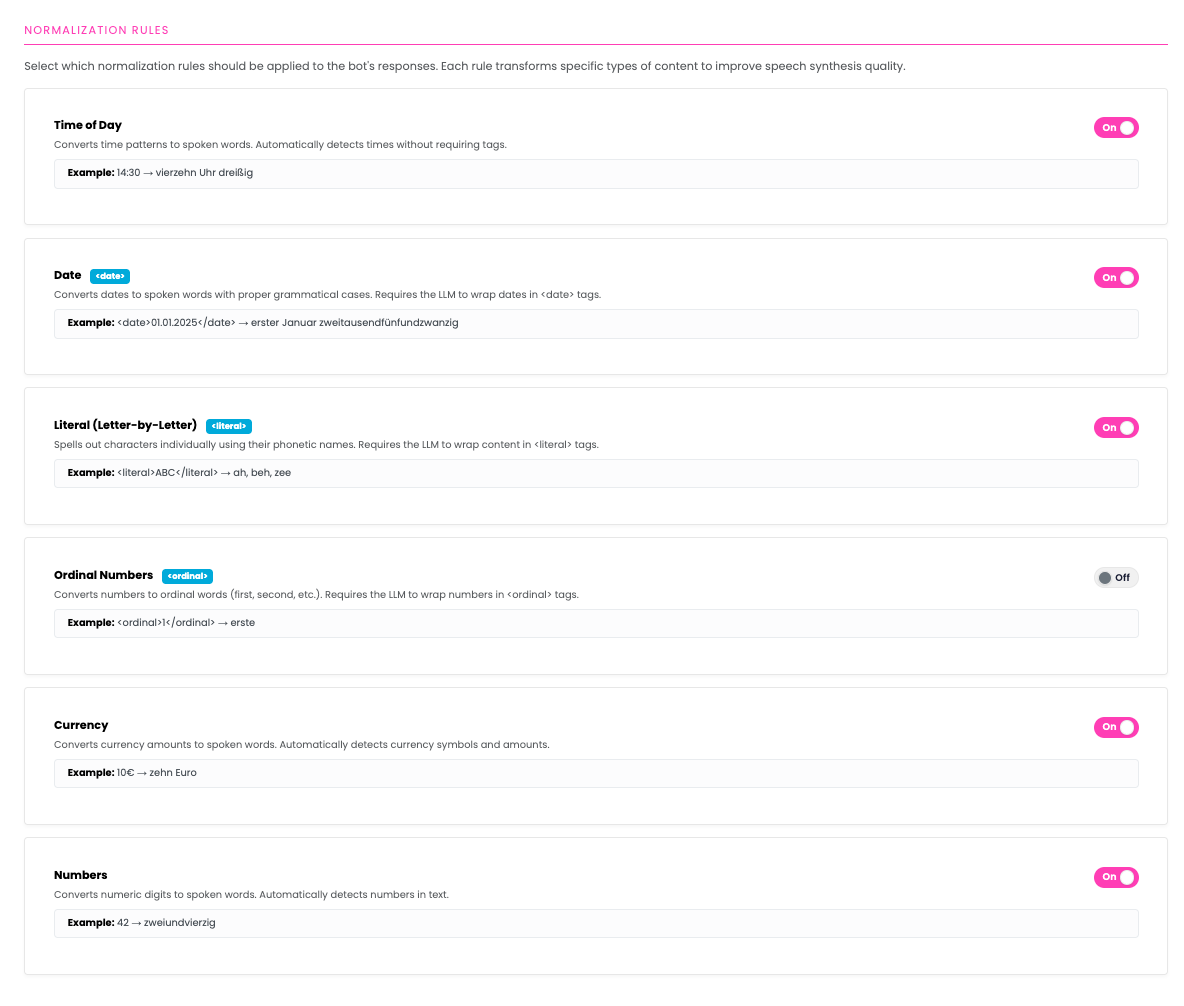
Normalization rules define which types of text transformations are applied. Each rule can be toggled on or off independently.
Time of Day
Converts time expressions like "14:30" or "9:15 Uhr" into spoken format. Examples:
14:30→ "vierzehn Uhr dreißig"9:15 Uhr→ "neun Uhr fünfzehn"
Date
To convert dates into their natural spoken German form, enclose the date in a <date> tag. The text normalization system will automatically process and transform a wide range of common European date formats into fluent, natural-sounding German.
Supported inputs:
<date>1.8.23</date>or<date>1.8.2023</date>→ "erster August zweitausenddreiundzwanzig"<date>01.08.1999</date>→ "erster August neunzehnhundertneunundneunzig"<date>01.08.2023</date>→ "erster August zweitausenddreiundzwanzig"<date>01/08/2023</date>→ "erster August zweitausenddreiundzwanzig"<date>6/27</date>→ "Juni zweitausendsiebenundzwanzig"<date>06/27</date>→ "Juni zweitausendsiebenundzwanzig"<date>06/2027</date>→ "Juni zweitausendsiebenundzwanzig"
Literal
Processes text enclosed in <literal> tags, spelling out each character individually according to your Literal Mappings configuration. You can customize the separator character used between spelled-out characters in the Literal Mappings settings (default: , - comma and space).
Examples (with default separator , ):
<literal>GPT</literal>→ "geh, peh, teh"<literal>042165838493</literal>→ "null, vier, zwei, eins, sechs, fünf, acht, drei, acht, vier, neun, drei"<literal>DE93 3845</literal>→ "deh, eh, neun, drei, drei, acht, vier, fünf"
Ordinal (not perfect)
Note: Ordinal normalization does not work perfectly for all cases. It is best used only if your assistant is powered by a small or weak LLM which cannot consistently generate correct grammatical forms on its own. For this reason, the default configuration includes an explicit instruction in the LLM prompt to produce correct ordinal forms directly, avoiding the need for this rule when possible.
Converts ordinal numbers (e.g., "1.", "12.") into their word form:
der 1. Platz→ "der erste Platz"am 12. Tag→ "am zwölften Tag"
Currency
Converts currency amounts into spoken format:
50€→ "fünfzig Euro"100 Euro→ "einhundert Euro"
Number
Converts numeric values into their word equivalents:
42→ "zweiundvierzig"1000→ "eintausend"
Literal Mappings
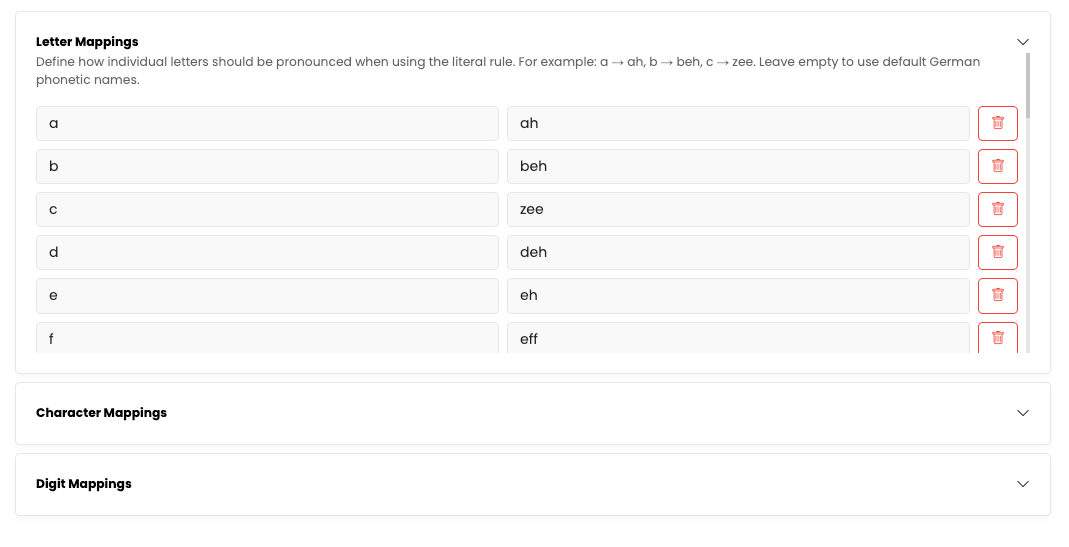
Literal mappings control how individual characters are pronounced when processing <literal> tags. You can customize four categories:
Letters: How each letter is pronounced
- Default:
a→ "ah",b→ "beh",c→ "zee", etc.
Characters: How special characters are pronounced
- Default:
#→ "hashtag",!→ "Ausrufezeichen",?→ "Fragezeichen", etc.
Digits: How numbers are pronounced when spelled out
- Default:
0→ "null",1→ "eins",2→ "zwei", etc.
Separator: The character or space used between spelled-out characters
- Default:
,(comma and space) - Example: With separator
,, "GPT" becomes "geh, peh, teh"
You can customize any of these mappings to match your preferred pronunciation style.
Node-Level Settings
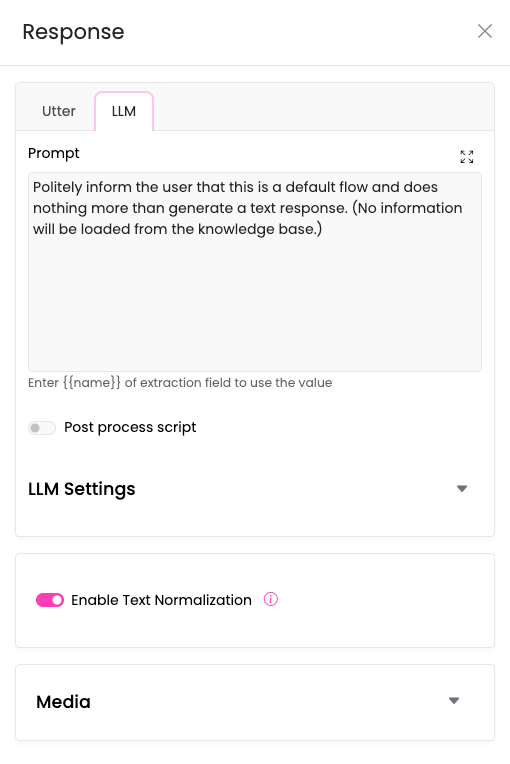
In addition to the global phone channel settings, text normalization can be controlled at the individual node level. This allows you to enable or disable normalization for specific parts of your conversation flow.
Where to Find It
The "Enable Text Normalization" toggle appears in the configuration panel for:
- Response Nodes
- Knowledge Nodes
- Form Nodes
- Action Nodes
How It Works
The node-level toggle determines whether normalization is applied for that specific node's output. However, it works in conjunction with the global settings:
- If global text normalization is disabled, the node-level toggle has no effect
- If global text normalization is enabled, each node's toggle controls whether normalization applies to its output
This gives you flexibility to use normalization selectively in your conversation flow. For example, you might:
- Enable normalization for customer-facing responses
- Disable normalization for other LLM calls
- Enable normalization only for nodes that deal with dates, numbers, or technical terms
Using use_normalize in Tracker API
For advanced users and developers working with custom scripts, the use_normalize parameter provides programmatic control over text normalization for individual LLM calls.
Available in All LLM Functions
The use_normalize parameter is available in all tracker API LLM functions:
# Force enable normalization for this call
response = await tracker_api.a_call_llm(
    messages=[...],
    use_normalize=True
)

# Force disable normalization for this call
response = await tracker_api.a_call_llm_w_tools(
    messages=[...],
    tools=[...],
    use_normalize=False
)

# Use default settings (omit the parameter)
response = await tracker_api.stream_call_llm(
    messages=[...]
)
Available Functions
tracker_api.a_call_llm(..., use_normalize=True/False)tracker_api.a_call_llm_w_tools(..., use_normalize=True/False)tracker_api.a_infer_with_chat_model(..., use_normalize=True/False)tracker_api.stream_call_llm(..., use_normalize=True/False)tracker_api.a_stream_call_llm_w_tools(..., use_normalize=True/False)tracker_api._raw_llm_call(..., use_normalize=True/False)tracker_api.a_call_llm_with_response_model(..., use_normalize=True/False)tracker_api.fixed_utter(..., use_normalize=True/False)
How Everything Works Together
Understanding the hierarchy of text normalization settings is crucial for configuring it correctly. Text normalization uses a multi-level decision system to determine whether normalization is applied.
The Hierarchy
Text normalization follows this priority order:
-
System Level (Phone Channel) - Master switch
- Location: Phone Channel → Text Normalization → Apply text normalization for the selected language
- Effect: If disabled, NO normalization occurs regardless of other settings
- This is the ultimate override
-
Override Level -
use_normalizeparameter- Location: In code, using
tracker_apifunctions - Effect: When explicitly set to
TrueorFalse, overrides node and function settings - Only works if system level is enabled
- Location: In code, using
-
Node Level - Enable Text Normalization toggle
- Location: Individual node configuration (Response, Knowledge, Action, Form nodes)
- Effect: Controls normalization for that specific node's output
- Default: Enabled
-
Function Level - Function-specific settings
- Location: Phone Channel → Text Normalization → Function-Specific Normalization
- Effect: Controls normalization for specific LLM API functions
- Each function type can be individually enabled/disabled
Decision Logic
For text normalization to be applied, the following must all be true:
System Enabled AND (use_normalize=True OR (Node Enabled AND Function Enabled))
More specifically:
Scenario 1: System Disabled
- Result: No normalization, ever
Scenario 2: System Enabled + use_normalize=True
- Result: Normalization applied (node and function settings ignored)
Scenario 3: System Enabled + use_normalize=False
- Result: No normalization (explicit override)
Scenario 4: System Enabled + Node Enabled + Function Enabled
- Result: Normalization applied
Scenario 5: System Enabled + Node Disabled
- Result: No normalization (even if function is enabled)
Scenario 6: System Enabled + Node Enabled + Function Disabled
- Result: No normalization
Viewing Normalization Results
To help you verify that text normalization is working correctly, there are several ways to inspect the normalized output.
Development Chat UI Toggle
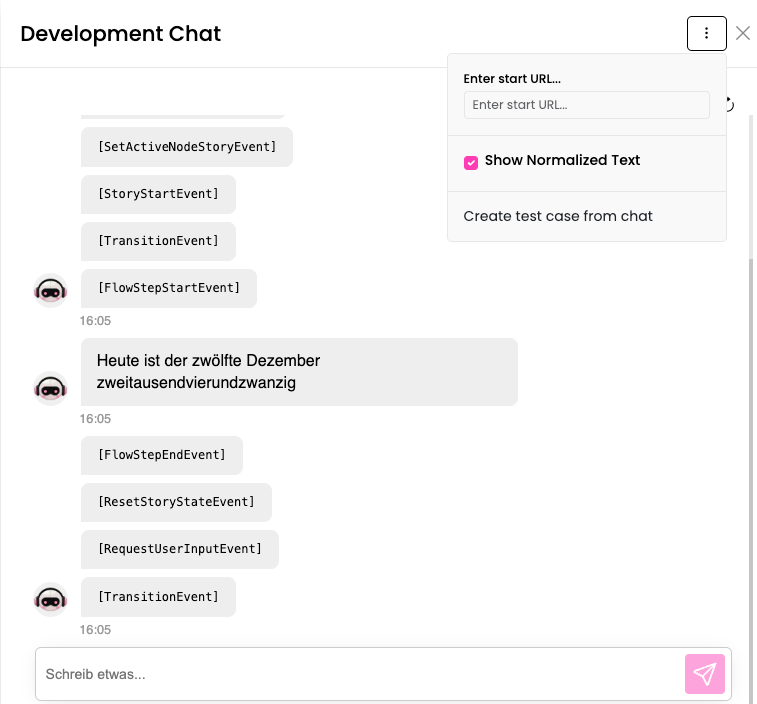
In the development chat interface, there is a text normalization toggle that allows you to view the normalized text alongside the original bot response. This is helpful for:
- Testing your normalization configuration
- Verifying that dates, numbers, and special formats are normalized correctly
- Debugging issues with normalization rules
When enabled, the chat interface will display both the normalized version that would be sent to the TTS engine.
Programmatic Access (Advanced Users)
For developers and advanced users who need to access normalized text programmatically, the normalized output is stored in the event payload:
BotUtteredEvent
The normalized_text field contains the normalized version of the bot's response:
# Example structure
{
    "name": "BotUtteredEvent",
    "payload": {
        "text": "Your appointment is on <date>15.03.2024</date>",
        "normalized_text": "Your appointment is on fünfzehnter März zweitausendvierundzwanzig",
        ...
    },
    ...
}
StreamedUtteranceEvent
For streaming responses, the normalized text is also available in streaming events:
# Example structure for streaming events
{
    "name": "StreamedUtteranceEvent",
    "payload": {
        "text": "chunk of response...",
        "normalized_text": "normalized chunk...",
        ...
    },
    ...
}
When normalized_text is None
If normalized_text is None or not present in the event, it means:
- Text normalization is not enabled for this response
- The system, node, or function settings prevented normalization
- The
use_normalize=Falseoverride was used
This is normal and expected when normalization is intentionally disabled for certain outputs.