Text-to-Speech Configuration
Text-to-Speech (TTS) converts your bot's text responses into natural-sounding speech. Configure TTS settings in the Text-to-Speech tab of the Phone Channel.
Creating a TTS Provider
Before configuring TTS in the phone channel, you need to create a TTS provider:
- Navigate to Bot > Providers
- Click Create
- Select Text-to-Speech as the Provider type
- Choose your provider (Google, Azure, ElevenLabs, or botario)
- Enter your credentials and configuration
- Click Create
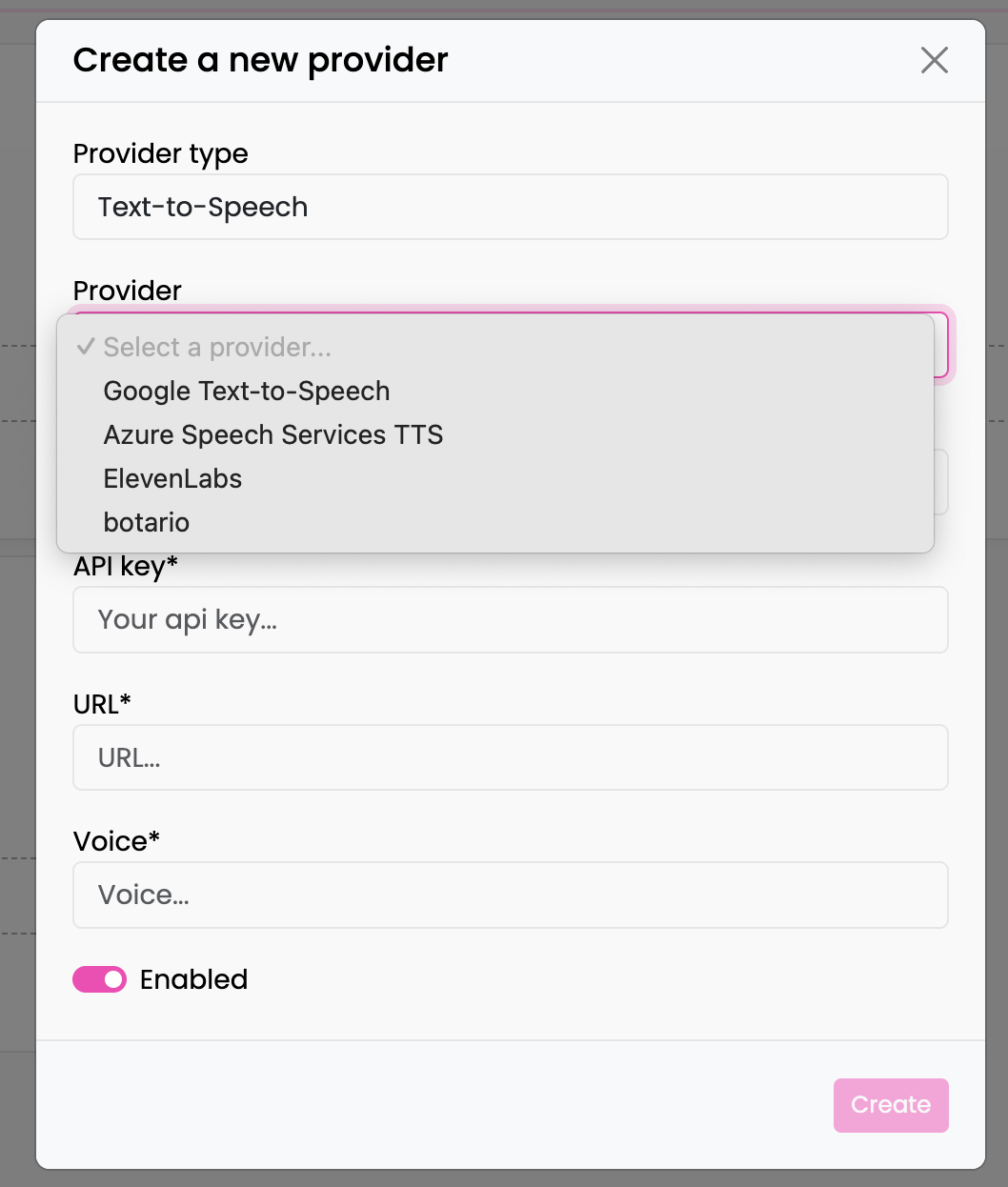
Available TTS Providers
| Provider | Description |
|---|---|
| Google Text-to-Speech | High-quality voices with gender selection |
| Azure Speech Services TTS | Enterprise TTS with extensive voice library and pitch control |
| ElevenLabs | AI-powered voices with voice cloning and emotional control |
| botario | AI-powered Custom or self-hosted voices |
Phone Channel TTS Settings
After creating a provider, configure it in the Phone Channel:
Selecting a Provider
In the Text-to-Speech tab, select your TTS provider from the dropdown. Only providers that are:
- Created in Bot > Providers with type "Text-to-Speech"
- Enabled for this bot in Bot Settings
will appear in the list.
Provider-Specific Configuration
Different providers offer different configuration options. The phone channel allows you to override provider defaults on a per-bot basis.
botario TTS
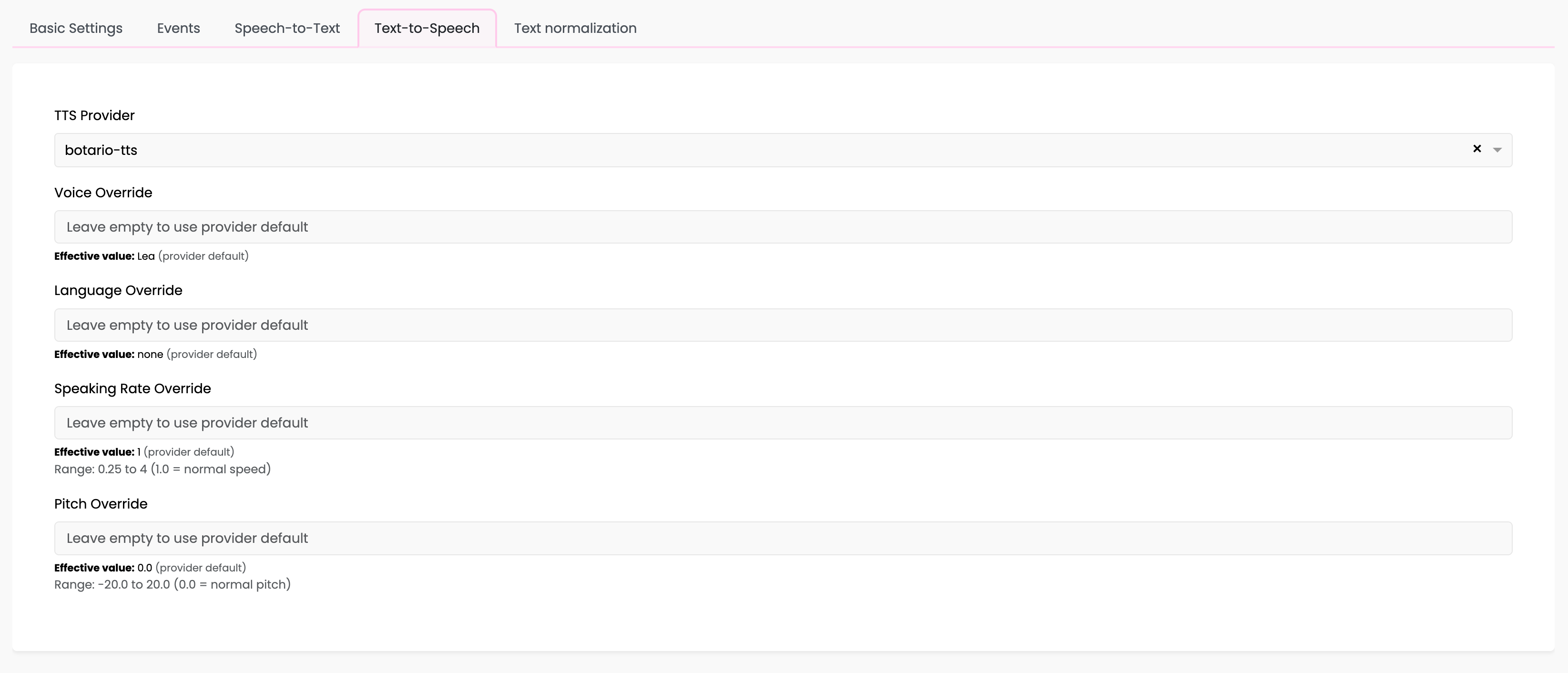
| Setting | Description |
|---|---|
| Voice Override | Override the default voice |
| Language Override | Override the default language code |
| Speaking Rate Override | (coming soon) Speech speed (0.25 to 4.0, where 1.0 is normal) |
| Pitch Override | (coming soon) Voice pitch adjustment (-20.0 to 20.0, where 0.0 is normal) |
Google Text-to-Speech
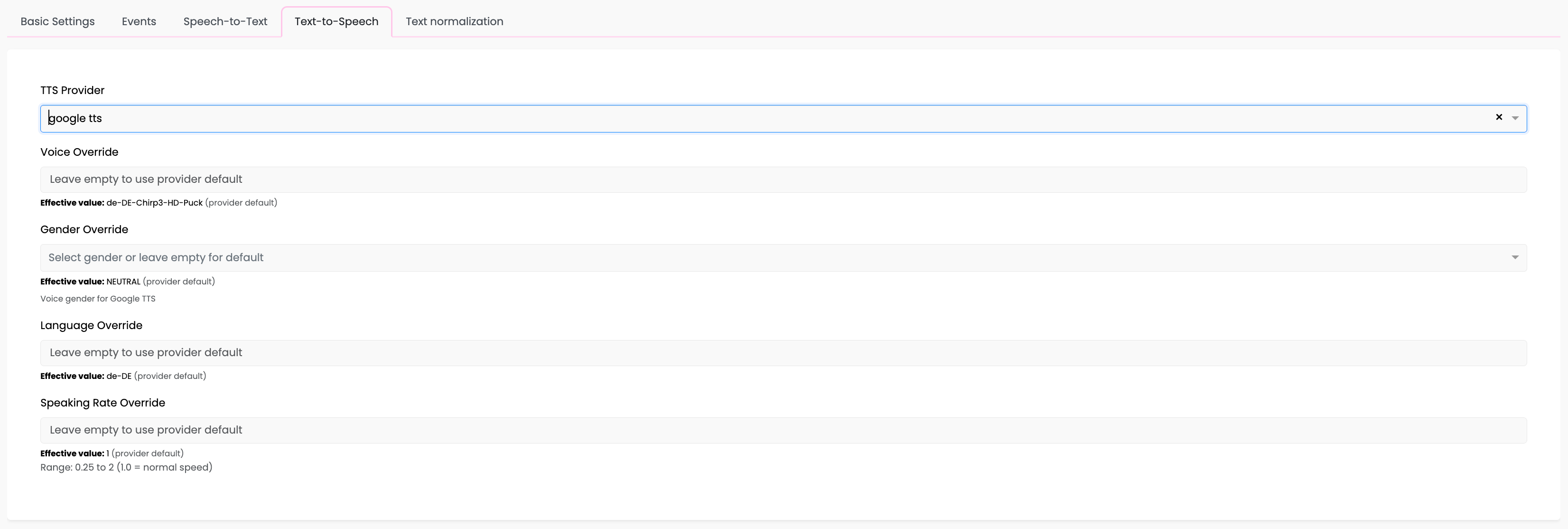
| Setting | Description |
|---|---|
| Voice Override | Override the default voice (e.g., de-DE-Chirp3-HD-Puck) |
| Gender Override | Voice gender: MALE, FEMALE, or NEUTRAL |
| Language Override | Override the default language code |
| Speaking Rate Override | Speech speed (0.25 to 2.0, where 1.0 is normal) |
Note: Google TTS speaking rate range is 0.25-2.0, more limited than other providers.
Azure Speech Services TTS
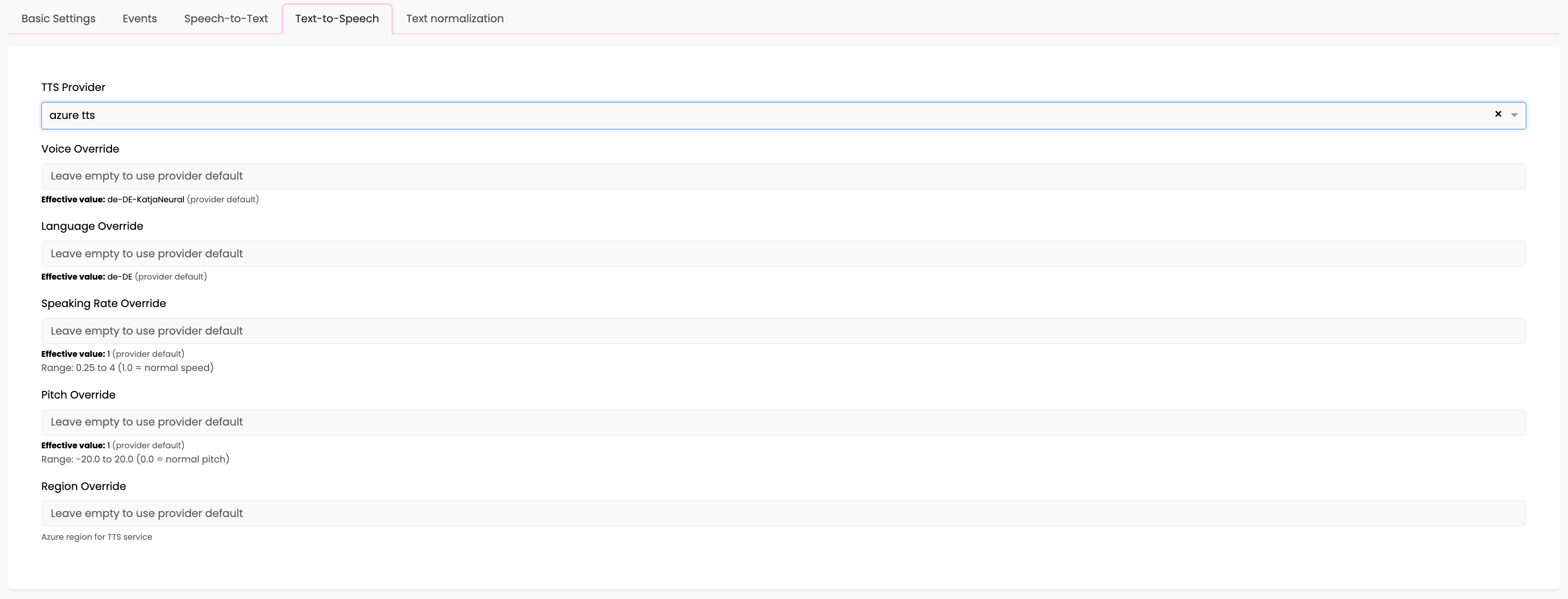
| Setting | Description |
|---|---|
| Voice Override | Override the default voice (e.g., de-DE-KatjaNeural) |
| Language Override | Override the default language code |
| Speaking Rate Override | Speech speed (0.25 to 4.0, where 1.0 is normal) |
| Pitch Override | Voice pitch adjustment (-20.0 to 20.0, where 0.0 is normal) |
| Region Override | Azure region for TTS service |
ElevenLabs
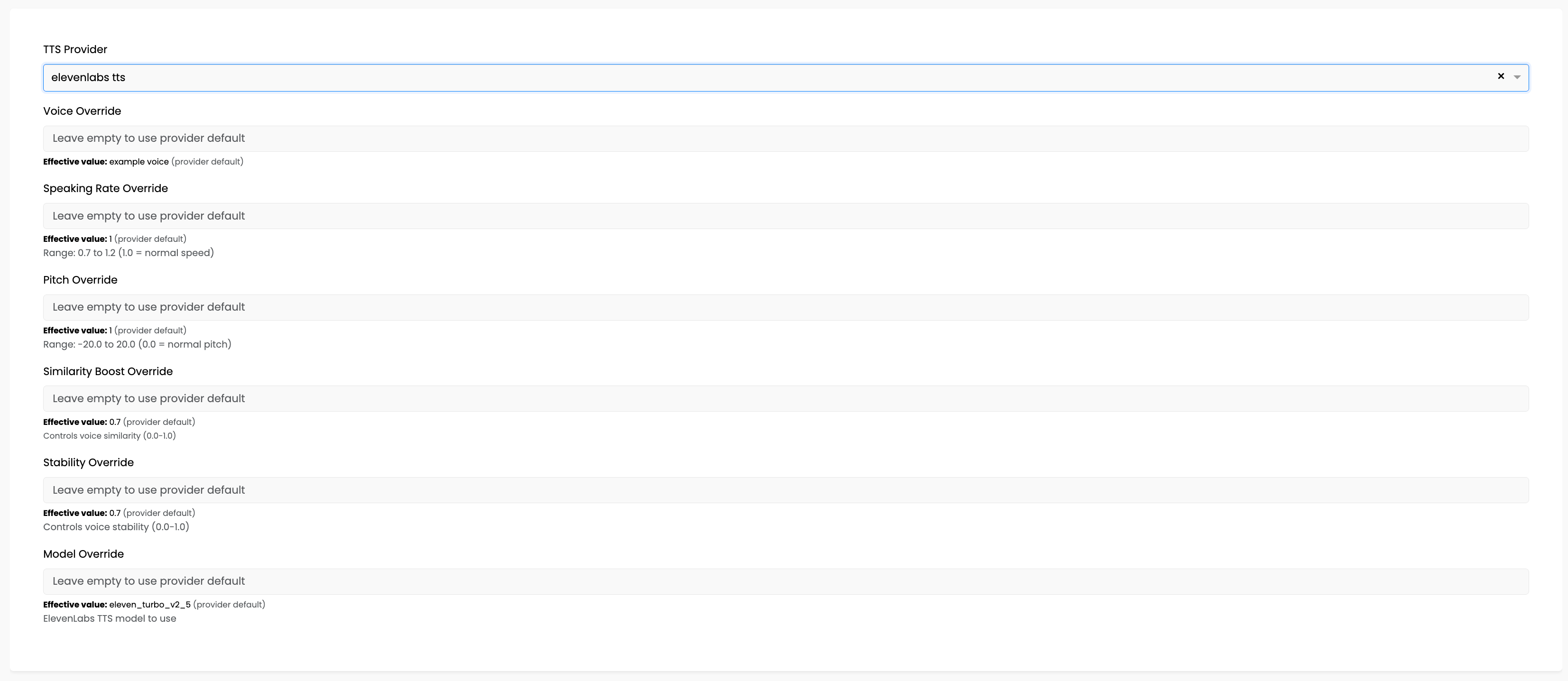
| Setting | Description |
|---|---|
| Voice Override | Override the default voice ID |
| Speaking Rate Override | Speech speed (0.7 to 1.2, where 1.0 is normal) |
| Pitch Override | Voice pitch adjustment (-20.0 to 20.0) |
| Similarity Boost Override | Voice consistency (0.0 to 1.0) - higher values sound more like the original voice |
| Stability Override | Voice stability (0.0 to 1.0) - higher values are more consistent, lower values more expressive |
| Model Override | ElevenLabs model (e.g., eleven_turbo_v2_5) |
ElevenLabs Settings Explained
Similarity Boost (0.0 - 1.0):
- Higher values make the voice sound more like the original voice sample
- Lower values allow more variation
- Default: 0.7
Stability (0.0 - 1.0):
- Higher values produce more consistent, predictable speech
- Lower values produce more expressive, dynamic speech
- Default: 0.7
- For professional/formal contexts, use higher stability (0.7-0.9)
- For casual/emotional contexts, use lower stability (0.3-0.6)
Speaking Rate Ranges
Different providers have different speaking rate ranges:
| Provider | Min | Max | Normal |
|---|---|---|---|
| Google TTS | 0.25 | 2.0 | 1.0 |
| Azure TTS | 0.25 | 4.0 | 1.0 |
| ElevenLabs | 0.7 | 1.2 | 1.0 |
| botario | 0.25 | 4.0 | 1.0 |
Tip: For elderly callers or complex information, reduce speaking rate to 0.8-0.9. For quick confirmations, you can increase to 1.1-1.2.
Effective Values
Each setting shows two values:
- Current value: What you've configured (or empty for provider default)
- Effective value: The actual value being used (your override or provider default)
The "Effective value" with "(provider default)" indicates the setting is using the provider's default configuration.
Dynamic TTS Configuration
You can change TTS settings during a conversation using the tracker API:
from botario_gpt_events.api_config.tts_api_config import GoogleTTSConfigUpdatePayload

# Slow down for important information
tracker_api.update_tts_config(
    GoogleTTSConfigUpdatePayload(
        speaking_rate=0.85,
        gender="FEMALE"
    )
)
See Phone API Reference for complete documentation.
Optimizing Voice Output
Text Normalization
For best TTS results, enable Text Normalization to ensure:
- Dates are spoken naturally ("January 15th" not "one five dot zero one")
- Phone numbers are spelled digit by digit
- Abbreviations are expanded or spelled appropriately
- Currency amounts are pronounced correctly
Voice Selection
When selecting voices:
- Neural voices (Azure, Google, botario) sound more natural
- Consider your audience's language and regional preferences
- Test different voices for brand fit
Performance Considerations
- ElevenLabs offers high quality but may have higher latency
- Azure and Google neural voices offer excellent quality with good performance
- For high-volume applications, test latency with your expected load
Troubleshooting
Speech Sounds Robotic
- Try a different voice (neural voices sound more natural)
- Adjust stability settings (ElevenLabs)
- Enable Text Normalization
Speech Too Fast/Slow
- Adjust Speaking Rate Override
- Remember different providers have different ranges
Wrong Language/Accent
- Check Language Override setting
- Verify the voice supports your target language
- Some voices are multi-lingual, others are language-specific
Provider Sync Failed
- Check PhoneServer Providers for sync status
- Verify API credentials are correct
- Check provider URL and region settings
Related Documentation
- Speech-to-Text Configuration - Configure voice input
- Text Normalization - Optimize text for speech
- PhoneServer Providers - Monitor provider sync
- Phone API Reference - Dynamic TTS configuration
- Bot Providers - Managing providers