Outbound Calls
The Outbound Calls feature allows your bot to initiate phone calls to external phone numbers programmatically. This enables use cases such as appointment reminders, notifications, surveys, and proactive customer outreach.
Overview
The outbound calling system works in two main steps:
- Configuration: Set up your outbound call settings in the phone channel configuration
- API Integration: Use the REST API to initiate and monitor outbound calls
Prerequisites
Before using the outbound calls feature, ensure you have:
- A bot with a configured phone channel
- Access to the phone channel configuration (Channel Manager role required)
- API credentials with appropriate permissions
Step 1: Configure Outbound Call Settings
Navigate to your bot's phone channel settings and configure the outbound call parameters.
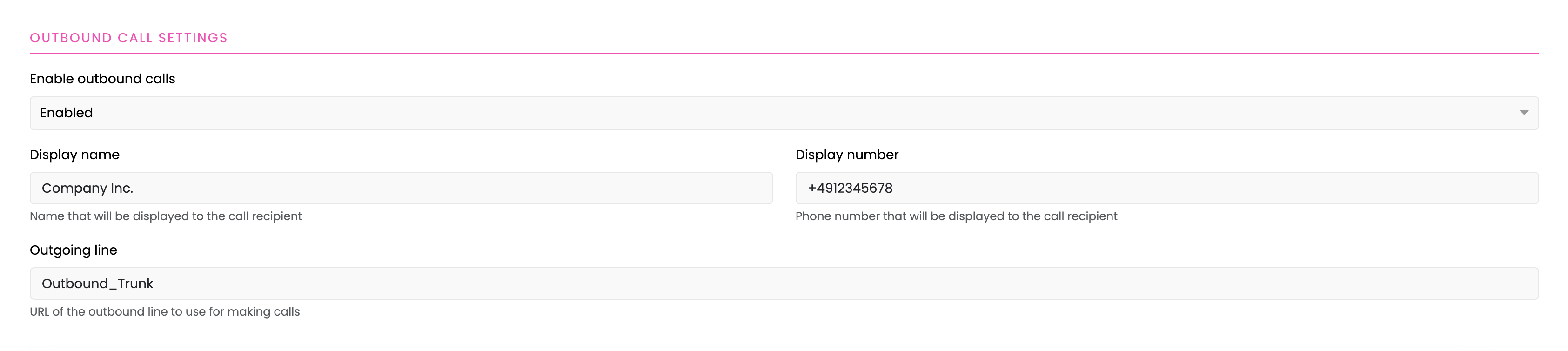
Configuration Parameters
1. Enable Outbound Calls
Toggle the "Enable outbound calls" option to activate the feature.
2. Display Name (Optional)
- Description: The name that will be displayed to the call recipient
- Example: "Company Inc.", "Customer Service"
- Note: This may or may not be displayed depending on the recipient's phone system and the SIP providers policy
3. Display Number (Required)
- Description: The phone number that will be displayed to the call recipient
- Format: International format recommended (e.g., +4912345678)
- Note: There may be restrictions or requirements regarding the Display Number depending on the SIP providers policy
4. Outgoing Line (Required)
- Description: The SIP trunk or line configuration for outbound calls
- Example: "Outbound_Trunk"
- Note: This should be configured by your phone system administrator
Saving Configuration
After configuring all required fields, click Save to apply the outbound call settings.
Step 2: Generate an API Key
To make outbound call requests, you need an API key with the appropriate permissions.
Creating the API Key
Refer to the API Keys documentation for detailed instructions on creating an API key with the following required settings:
- Scope: Read and Write permissions
- Roles: Channel Manager role
Important: Copy the API key immediately after creation as it will only be displayed once.
Step 3: Initiate an Outbound Call
Use the REST API to create an outbound call request.
API Endpoint
POST /bots/{botId}/phone-outbound-calls
Request Headers
x-api-key: {your-api-key}
Content-Type: application/json
Request Body
{
  "targetNumber": "+49123456789",
  "timeout": 30,
  "metadata": {
    "campaignId": "summer-2024",
    "customerId": "CUST-12345"
  },
  "sipHeader": {
    "X-Custom-Header": "value"
  }
}
Request Parameters
| Parameter | Type | Required | Description |
|---|---|---|---|
targetNumber | string | Yes | The phone number to call (international format recommended) |
timeout | number | No | Maximum ringing duration in seconds before the call is cancelled if not answered (default: 30) |
metadata | object | No | Custom metadata to attach to the call. Given metadata will be set as value of the slot sys_phone_session_start_metadata |
sipHeader | object | No | Custom SIP headers to include in the call. These headers will be transmitted as part of the SIP INVITE message to the recipient |
Response
A successful request returns a call document with the following structure:
{
  "_id": "507f1f77bcf86cd799439011",
  "botId": "507f191e810c19729de860ea",
  "tenantId": "507f191e810c19729de860eb",
  "targetNumber": "+49123456789",
  "callId": "1701234567890-a1b2c3d4-e5f6-7890-abcd-ef1234567890",
  "status": "initialized",
  "timeout": 30,
  "metadata": {
    "campaignId": "summer-2024",
    "customerId": "CUST-12345"
  },
  "sipHeader": {
    "X-Custom-Header": "value"
  },
  "createdAt": "2024-12-05T10:30:00.000Z",
  "updatedAt": "2024-12-05T10:30:00.000Z"
}
Call ID
The callId field is a unique identifier for the call, formatted as: {timestamp}-{uuid}
Save this callId to monitor the call status later.
Example Request (cURL)
curl -X POST https://your-instance.com/bots/507f191e810c19729de860ea/phone-outbound-calls \
  -H "x-api-key: 507f1f77bcf86cd799439011.a3b2c1d4-e5f6-7890-abcd-ef1234567890" \
  -H "Content-Type: application/json" \
  -d '{
    "targetNumber": "+49123456789",
    "timeout": 30,
    "metadata": {
      "campaignId": "summer-2024",
      "customerId": "CUST-12345"
    }
  }'
Step 4: Monitor Call Status
After initiating a call, you can query its status using the call ID.
API Endpoint
GET /bots/{botId}/phone-outbound-calls/{callId}
Request Headers
x-api-key: {your-api-key}
Response
{
  "_id": "507f1f77bcf86cd799439011",
  "botId": "507f191e810c19729de860ea",
  "tenantId": "507f191e810c19729de860eb",
  "targetNumber": "+49123456789",
  "callId": "1701234567890-a1b2c3d4-e5f6-7890-abcd-ef1234567890",
  "status": "in_call",
  "statusDetails": "Call answered by recipient",
  "timeout": 30,
  "metadata": {
    "campaignId": "summer-2024",
    "customerId": "CUST-12345"
  },
  "sipHeader": {
    "X-Custom-Header": "value"
  },
  "createdAt": "2024-12-05T10:30:00.000Z",
  "updatedAt": "2024-12-05T10:30:45.000Z"
}
Call Status Values
The status field indicates the current state of the call:
| Status | Description |
|---|---|
initialized | The call has been created and is being prepared for dialing |
queued | The call is queued and will be dialed shortly |
dialing | The call is being dialed |
ringing | The call is ringing on the recipient's end |
in_call | The call was anwered and is currently in progress |
completed | The call has been completed successfully |
failed | The call has failed to connect. See statusDetails for more information |
no_answer | The call was not answered by the recipient |
rejected | The call was rejected by the recipient |
busy | The recipient's line is busy |
Example Request (cURL)
curl -X GET https://your-instance.com/bots/507f191e810c19729de860ea/phone-outbound-calls/1701234567890-a1b2c3d4-e5f6-7890-abcd-ef1234567890 \
  -H "x-api-key: 507f1f77bcf86cd799439011.a3b2c1d4-e5f6-7890-abcd-ef1234567890"
Error Handling
Common Error Responses
401 Unauthorized
{
  "statusCode": 401,
  "message": "Invalid API Key"
}
Solution: Verify your API key is correct and has not expired.
403 Forbidden
{
  "statusCode": 403,
  "message": "Forbidden. Required roles: channel-manager"
}
Solution: Ensure your API key has the Channel Manager role and Write scope.
404 Not Found
{
  "statusCode": 404,
  "message": "Call not found"
}
Solution: Verify the callId and botId are correct.
Troubleshooting
Calls Not Initiating
Possible Causes:
- Outbound calls not enabled in phone channel configuration
- Missing or incorrect outgoing line configuration
- Invalid display number
- API key lacks required permissions
Solutions:
- Verify all configuration fields are properly set
- Check phone system logs for connection issues
- Ensure API key has Channel Manager role and Write scope
Calls Failing Immediately
Possible Causes:
- Invalid target phone number format
- Blocked number or prefix
- Insufficient phone system capacity
- Network connectivity issues
Solutions:
- Validate phone number format
- Check blocked numbers list in phone channel settings
- Contact your phone system administrator
- Verify phone server connectivity