Speech-to-Text Configuration
Speech-to-Text (STT) converts user speech into text that your bot can process. Configure STT settings in the Speech-to-Text tab of the Phone Channel.
Creating an STT Provider
Before configuring STT in the phone channel, you need to create an STT provider:
- Navigate to Bot > Providers
- Click Create
- Select Speech-to-Text as the Provider type
- Choose your provider (Azure Speech Services or botario Speech)
- Enter your credentials and configuration
- Click Create
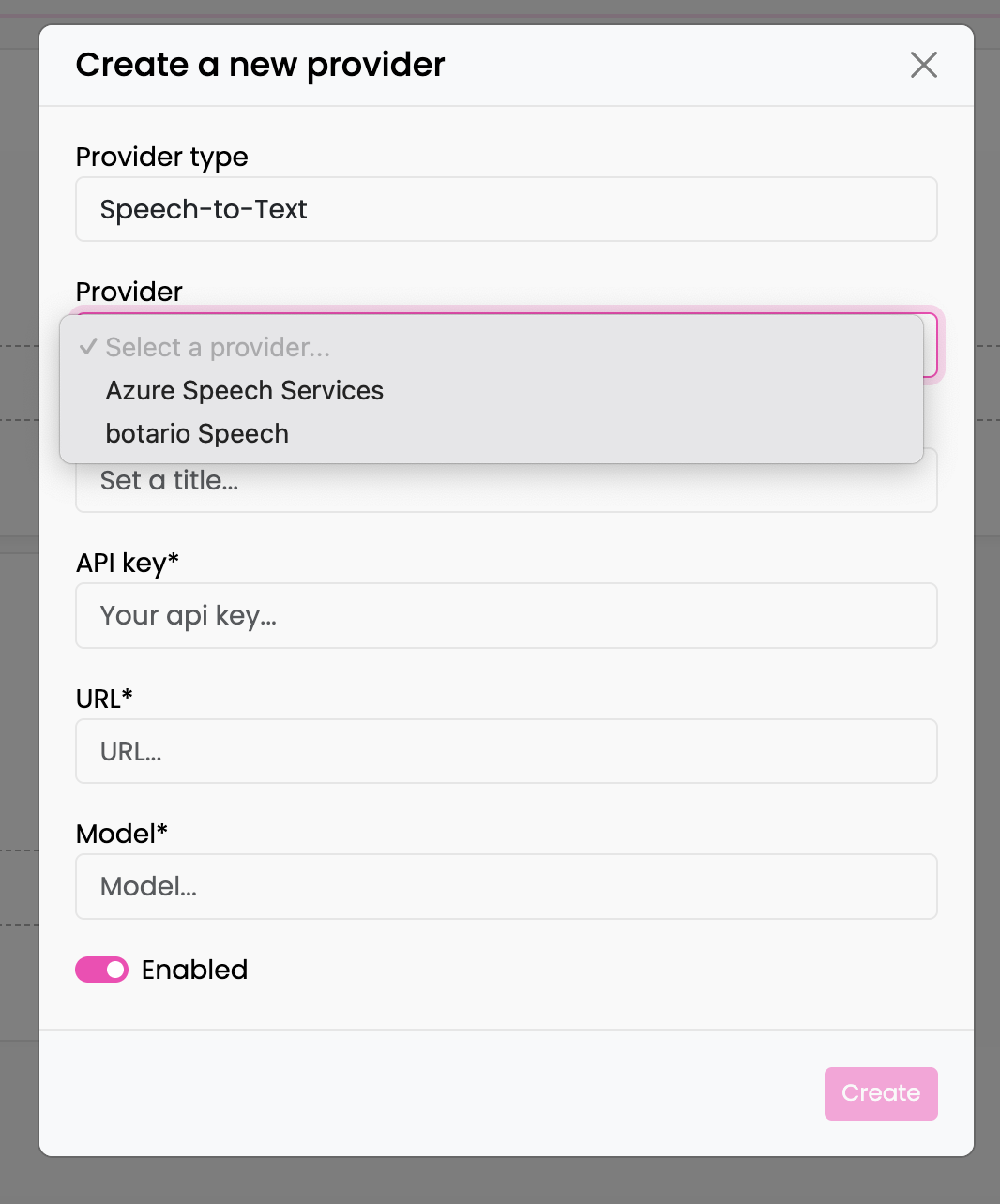
Available STT Providers
| Provider | Description |
|---|---|
| Azure Speech Services | Microsoft's enterprise speech recognition with dictation and semantic segmentation |
| botario Speech | Custom/self-hosted STT service with alpha-numeric optimization |
Phone Channel STT Settings
After creating a provider, configure it in the Phone Channel:
Selecting a Provider
In the Speech-to-Text tab, select your STT provider from the dropdown. Only providers that are:
- Created in Bot > Providers with type "Speech-to-Text"
- Enabled for this bot in Bot Settings
will appear in the list.
Provider-Specific Configuration
Different providers offer different configuration options. The phone channel allows you to override provider defaults on a per-bot basis.
botario Speech
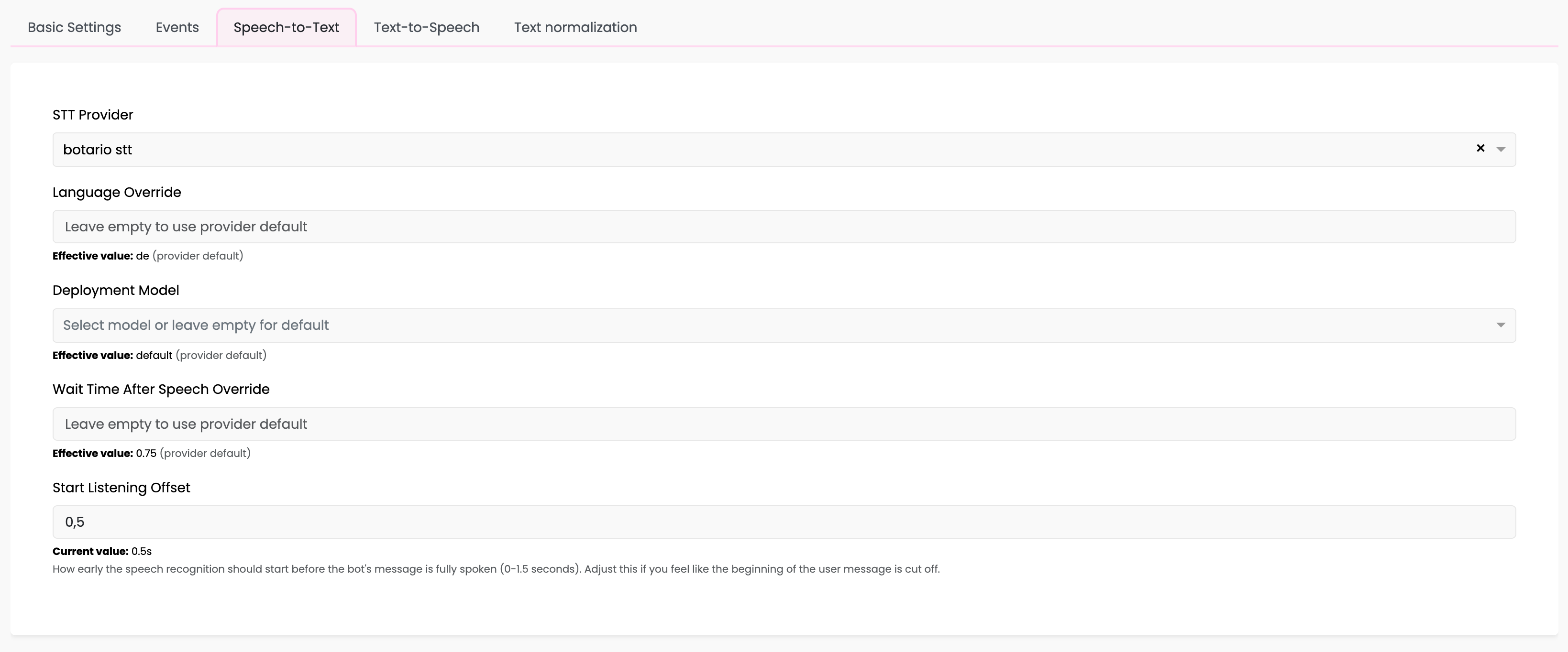
| Setting | Description |
|---|---|
| Language Override | Override the default language code (e.g., de for German) |
| Deployment Model | default for general speech, alpha_num for alphanumeric input (IBANs, codes, etc.) |
| Wait Time After Speech Override | How long to wait after speech ends before processing |
| Start Listening Offset | How early to start listening before bot finishes speaking (0-1.5 seconds) |
Azure Speech Services
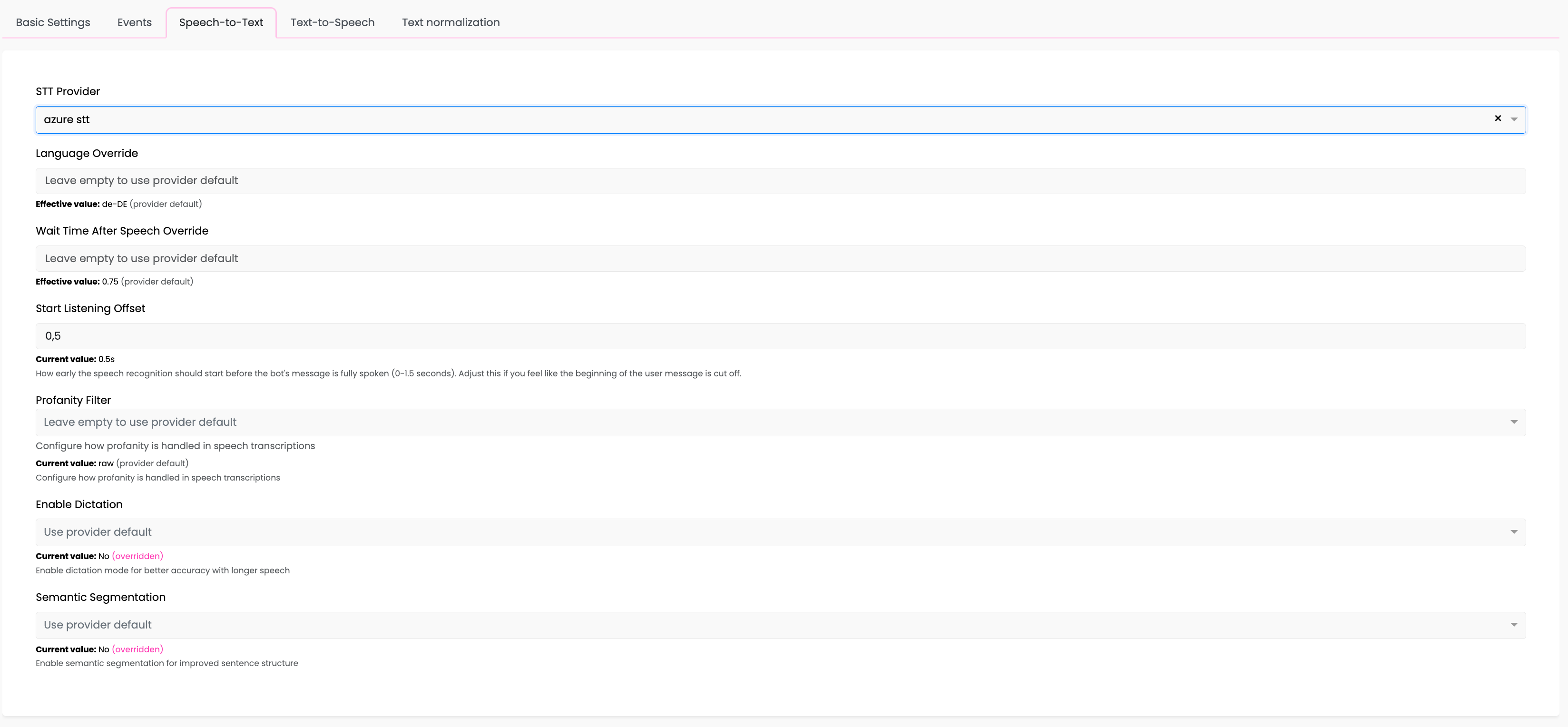
| Setting | Description |
|---|---|
| Language Override | Override the default language code (e.g., de-DE) |
| Wait Time After Speech Override | How long to wait after speech ends |
| Start Listening Offset | How early to start listening (0-1.5 seconds) |
| Profanity Filter | How to handle profanity: raw (no filter), masked (replace), removed (delete) |
| Enable Dictation | Enable dictation mode for better accuracy with longer speech |
| Semantic Segmentation | Enable semantic segmentation for improved sentence structure |
Dictation Mode
When enabled, dictation mode:
- Listens longer for user input
- Better handles natural pauses in speech
- Adds automatic punctuation
- Recommended for longer utterances like addresses or detailed descriptions
Semantic Segmentation
When enabled:
- Improves sentence boundary detection
- Better handles complex sentences
- Recommended for conversational speech
Common Settings Explained
Start Listening Offset
This setting controls how early the STT starts listening before the bot's message is fully spoken.
- Range: 0 to 1.5 seconds
- Default: 0.5 seconds
Why it matters: Users often start speaking before the bot finishes. A higher offset captures these early responses but may pick up the bot's own speech.
Recommendations:
- Start with
0.5s(default) - Increase to
0.8-1.0sif users report being cut off - Decrease if transcriptions include bot speech
Wait Time After Speech
How long to wait after the user stops speaking before finalizing the transcription.
- Range: 0 to 5 seconds
- Default: Varies by provider (typically 0.75s)
Why it matters: Some users pause mid-sentence. Too short a wait cuts them off; too long creates awkward delays.
Recommendations:
0.5-0.75sfor quick interactions (menus, yes/no)1.0-2.0sfor complex input (addresses, descriptions)- Use dictation mode for very long input instead of increasing this value
Effective Values
Each setting shows two values:
- Current value: What you've configured (or empty for provider default)
- Effective value: The actual value being used (your override or provider default)
The "Effective value" with "(provider default)" indicates the setting is using the provider's default configuration.
Dynamic STT Configuration
You can change STT settings during a conversation using the tracker API:
from botario_gpt_events.phone_events import AzureSTTConfigUpdatePayload

# Switch to dictation mode for detailed input
tracker_api.update_stt_config(
    AzureSTTConfigUpdatePayload(
        enable_dictation=True,
        language_code="de-DE"
    )
)
See Phone API Reference for complete documentation.
Troubleshooting
Speech Not Being Recognized
- Check provider sync status in PhoneServer Providers
- Verify language settings match user's language
- Try increasing Wait Time After Speech
- Check if background noise is too high
User Gets Cut Off
- Increase Start Listening Offset
- Consider enabling Dictation Mode (Azure)
- Increase Wait Time After Speech
Transcriptions Include Bot Speech
- Decrease Start Listening Offset
- This occurs when the offset is too high
Poor Accuracy
- Try a different deployment model
- Enable Dictation Mode for longer inputs (Azure)
- Check language code matches user's language and dialect
Related Documentation
- Text-to-Speech Configuration - Configure voice output
- PhoneServer Providers - Monitor provider sync
- Phone API Reference - Dynamic STT configuration
- Bot Providers - Managing providers