PhoneServer Providers
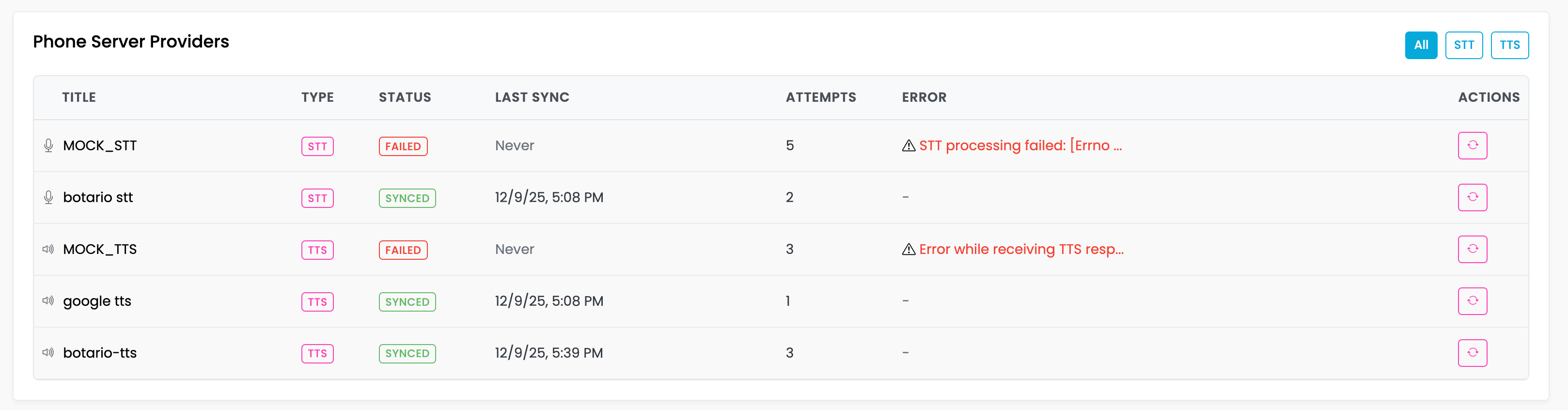
The PhoneServer Providers panel displays the synchronization status with the PhoneServer. This helps you monitor provider health and troubleshoot connectivity issues.
Accessing PhoneServer Providers
Navigate to Bot > Providers and scroll down to the Phone Server Providers section, or access it from the Providers page.
PhoneServer Connection Health
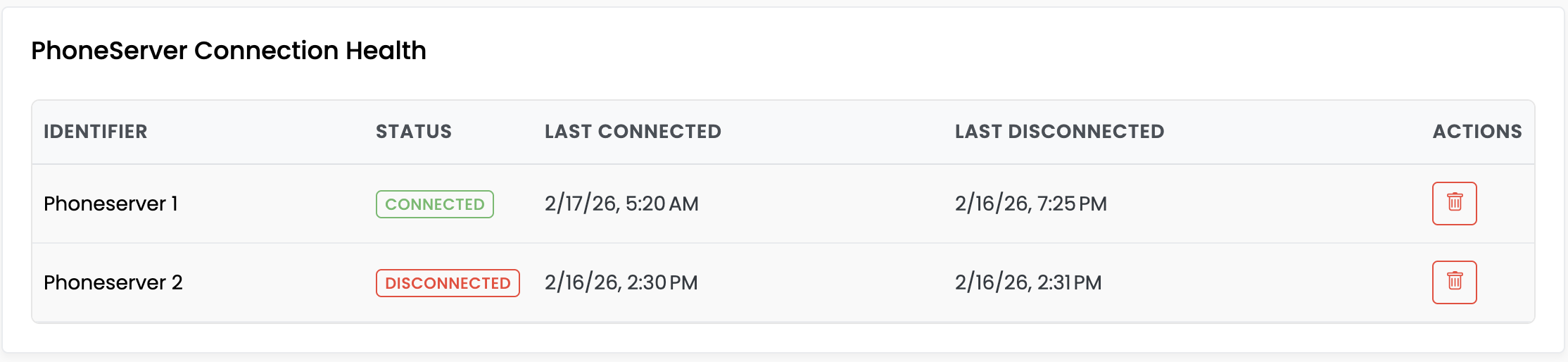
The PhoneServer Connection Health table shows all PhoneServers that have ever connected to the platform.
Health Check Monitoring
- Disconnected PhoneServers appear in the platform health check at
/api/health - This allows monitoring of connection issues across all registered PhoneServers
Cleaning Up Connections
If a PhoneServer should no longer communicate with the platform (e.g., it was only used for a demo), you can remove it from health checks by clicking the delete button. This prevents it from appearing in the health check results.
Understanding the Provider Table
The table displays all STT and TTS providers with their sync status:
| Column | Description |
|---|---|
| Title | Provider name with an icon indicating STT (microphone) or TTS (speaker) |
| Type | STT for Speech-to-Text, TTS for Text-to-Speech |
| Status | Current synchronization status |
| Last Sync | Timestamp of the last successful sync, or "Never" if not synced |
| Attempts | Number of sync attempts |
| Error | Error message if sync failed |
| Actions | Manual resync button |
Sync Status Values
| Status | Badge Color | Meaning |
|---|---|---|
| SYNCED | Green | Provider is successfully synchronized with PhoneServer |
| PENDING | Gray | Sync is in progress or queued |
| FAILED | Red | Sync failed - check error message |
| DIRTY | Yellow | Configuration changed, needs resync |
Filtering Providers
Use the filter buttons in the top right to view:
- All - All STT and TTS providers
- STT - Only Speech-to-Text providers
- TTS - Only Text-to-Speech providers
Sync Process
Automatic Sync
Providers are automatically synchronized when:
- A new provider is created
- An existing provider is updated
- PhoneServer reconnects after disconnection
- Phone channel configuration changes
Manual Resync
To manually trigger a resync:
- Find the provider in the table
- Click the resync button (circular arrow icon) in the Actions column
- Wait for the status to update
Tip: Use manual resync when a provider shows "FAILED" status after fixing the underlying issue.
Troubleshooting Sync Issues
Provider Shows "FAILED"
Common causes:
- Invalid API credentials - Verify your API key is correct
- Network connectivity - Check if the provider's API is reachable
- Configuration error - Review provider settings
- Service outage - Check provider status page
Steps to resolve:
- Check the Error column for details
- Navigate to Bot > Providers and edit the provider
- Verify and update credentials if needed
- Save the provider
- Click resync in the PhoneServer Providers table
Provider Stuck on "PENDING"
This may indicate:
- PhoneServer connection issues
- High server load
- Network latency
Steps to resolve:
- Wait a few moments for sync to complete
- Refresh the page
- Check PhoneServer connection status in Phone Channel header
- If still pending, try manual resync
"Never" in Last Sync Column
The provider has never been successfully synced. This typically means:
- Provider was just created
- All sync attempts have failed
- PhoneServer has never connected
Steps to resolve:
- Verify PhoneServer is connected (check Phone Channel header)
- Review provider configuration
- Click resync to trigger a new sync attempt
Multiple Failed Attempts
If the Attempts column shows a high number (e.g., 5+):
- There may be a persistent configuration issue
- The provider credentials may be invalid
- The external service may be unavailable
Steps to resolve:
- Verify the external service is operational
- Double-check all provider credentials
- Test the provider in the external service's own console
- After fixing, reset by editing and saving the provider
Connection Status
The PhoneServer connection status is shown in the Phone Channel header:
| Status | Meaning |
|---|---|
| Connected | PhoneServer is connected and can process calls |
| Disconnected | No connection to PhoneServer |
| Error | Connection error occurred |
If the PhoneServer is disconnected:
- Provider syncs will be queued
- Phone calls cannot be processed
- Contact your administrator
Provider Error Messages
Common error messages and their meanings:
| Error | Meaning | Solution |
|---|---|---|
STT processing failed | STT service rejected the configuration | Check API key and language settings |
Error while receiving TTS response | TTS service returned an error | Verify credentials and voice settings |
Connection timeout | Could not reach the provider | Check network connectivity |
Invalid credentials | API key is incorrect or expired | Update API credentials |
Unsupported language | Language code not supported | Check provider's supported languages |
Best Practices
Multiple Providers
- Configure backup providers of the same type
- If one provider fails, switch to backup in phone channel settings
- Different providers have different strengths (quality vs. latency vs. cost)
After Configuration Changes
- Always verify sync status after changing provider settings
- Wait for "SYNCED" status before testing phone functionality
- If sync fails, check error details before troubleshooting further
Related Documentation
- Speech-to-Text Configuration - Configure STT providers
- Text-to-Speech Configuration - Configure TTS providers
- Phone Channel Overview - Phone channel setup
- Bot Providers - Creating and managing providers