Extraction Fields
TL;DR: Extraction Fields (also called "slots") are structured data containers that store information extracted by the LLM during conversations. They enable your bot to remember user inputs (names, dates, preferences) and use them in scripts, branch decisions, and outputs. Each field has a data type, description, and optional validation. They're the backbone of dynamic, context-aware conversations.
Extraction Fields are reusable data containers that allow your bot to capture, store, and utilize structured information from user messages. Think of them as variables that the LLM can automatically fill during conversations—like extracting a user's email address, birth date, or product preference.
Once extracted, these values can be:
- Referenced in bot responses using templating (
{{field_name}}) - Used in custom scripts for business logic
- Evaluated in branch nodes for conditional flow control
- Passed between flows and nodes
- Accessed by external systems via the API
Why Use Extraction Fields?
Extraction Fields enable your bot to build context and memory throughout a conversation. Without them, your bot would have no way to remember or act on information users provide.
Use cases include:
- Form filling - Collecting structured data like name, email, phone number
- Personalization - Remembering user preferences or previous choices
- Business logic - Using extracted values to make decisions (e.g., checking age before proceeding)
- Data persistence - Storing conversation data for later use or analytics
- Dynamic responses - Tailoring messages based on extracted information
Managing Extraction Fields
Viewing All Extraction Fields
To view all extraction fields for your bot:
- Navigate to Content → Extraction Fields in the sidebar
- You'll see a list of all extraction fields with their:
- Name - The unique identifier for the field
- Description - What the field represents
- Data Type - The type of data it stores (string, integer, etc.)
- Created Date - When the field was created
You can click on any field to edit it.
Creating an Extraction Field
There are two ways to create extraction fields:
Method 1: From the Extraction Fields List
- Navigate to Content → Extraction Fields
- Click the Create button
- Fill in the field details (see Field Properties below)
- Click Save
Method 2: Inline in a Form Node
When creating a Form Node, you can create extraction fields on the fly:
- Create or edit a Form Node
- Click Add Extraction Field
- Define the field properties inline
- The field becomes available globally for reuse in other nodes
Field Properties
Each extraction field has the following properties:
Name (Required)
The unique identifier for the field. This is how you'll reference it in templates, scripts, and conditions.
Requirements:
- At least 3 characters
- Only alphanumeric characters and underscores (no spaces or special characters)
- Must be unique within the bot
Example: user_email, birth_date, product_choice
Description (Required)
A clear, detailed description of what information this field should contain. This description is crucial—it's what the LLM uses to understand what to extract.
Best practices:
- Be specific and detailed
- Include format requirements (e.g., "Must be in DD.MM.YYYY format")
- Mention any constraints (e.g., "Must be a positive number")
- Use natural language the LLM can understand
Example:
The user's date of birth. Must consist of day, month and year and be
delivered in the format DD.MM.YYYY.
Data Type (Required)
The type of data this field will store. Available types:
| Type | Description | Example |
|---|---|---|
str | Character string (text) | "John Doe", "hello@example.com" |
int | Integer (whole numbers) | 1, 2, 3, 42 |
float | Floating point number | 1.5, 3.14, 99.99 |
bool | Boolean (true/false) | true, false |
date | Date (YYYY-MM-DD) | 2024-01-15 |
datetime | Date and time (ISO 8601) | 2024-01-15T14:30:00 |
The LLM will automatically validate and convert extracted values to the specified type.
Examples / Enums
Provide example values to help the LLM understand what kind of data to extract. This field can function in two modes:
Examples Mode (Default): Add sample values that demonstrate the expected format. These are hints for the LLM—not strict constraints.
Example:
john.doe@example.com
jane.smith@company.org
support@website.com
Enum Mode: Toggle "Interpret as Enum" to restrict the field to only accept specific predefined values. The LLM will only extract values that exactly match one of your enum options.
Example (product categories):
Electronics
Clothing
Books
Home & Garden
Note: For boolean fields used as enums, only use
trueandfalseas your enum values.
Validation Script (Optional)
Write custom Python code to validate extracted values. When enabled and using the default-form-agent this script runs after the LLM extracts a value and before it's saved to the slot. When using a custom-form-agent the script will be executed when validate_slots is called.
Use cases:
- Check if an email is from an allowed domain
- Verify a number is within an acceptable range
- Validate against external data sources
- Apply complex business rules
Validation script structure:
# The extracted value is available as 'value'
# Return True if valid, False if invalid
# Optionally raise an exception with an error message

if "@example.com" not in value:
    raise ValueError("Email must be from example.com domain")

return True
Important: Toggle the "Validation Script Active" switch to enable validation.
Note: Field-level validation scripts validate individual fields in isolation. For validation logic that requires multiple field values (e.g., checking if end date is after start date), use Form Validation Scripts instead.
Livechat Whitelisted
When enabled, this extraction field can be read by live chat operators during a conversation. This allows human agents to view and update values during a handoff.
Use cases:
- Fields that agents need to verify
- Information agents might need to reference
- Data that should be visible in the live chat interface
External Writeable
When enabled, external systems can write to this field via the API.
Use cases:
- Populating fields via API before starting a conversation
Confidential (API Only)
Use this flag for short-lived secrets that a custom action needs for one request, for example session tokens, one-time access tokens, or OTPs.
When the value is delivered through the REST API, the plaintext is kept only in memory for the current turn. It is not written to the database, tracker state, event log, or service logs.
Important: Confidential protection is API-only. Form Nodes,
tracker_api.set_slot(),apply_slots(), andpayload.slotsare not blocked by this flag. If one of those paths writes to the same field, the value is handled like a regular slot and is persisted in plaintext.
Requirements:
- Deliver confidential values only through the REST API.
- Enable External Writeable on the extraction field.
- Send the value as a plain string.
- Do not attach confidential fields to Form Nodes or write to them from custom actions if the value must stay out of persistence.
Persistence and availability:
| Item | Behavior |
|---|---|
| Plaintext value | Available only to custom actions during the originating turn |
| Later turns | Plaintext is gone |
| Database / event log | Plaintext is never persisted |
Tracker state (state.slots) | Plaintext is never stored |
| Service logs | Plaintext is removed before validation and logging |
SlotSetEvent | Persisted only as a masked "*****" marker |
The masked SlotSetEvent only records that the slot was provided. It is not written into state.slots, so flow conditions, LLM prompts, and Form Nodes do not see a placeholder value.
Reading the value from a custom action:
| Call | Confidential slot, turn 1 | Confidential slot, turn 2+ | Regular slot |
|---|---|---|---|
a_get_slot_value(name) | default | default | real value |
get_slot_value(name) | default | default | real value |
a_get_slot_value(name, include_confidential=True) | plaintext | default | real value |
get_slot_value(name, include_confidential=True) | plaintext | default | real value |
Use include_confidential=True only in the action that needs the secret. Without it, confidential slots return the configured default (typically None); the flag has no effect on regular slots. For method signatures and usage details, see the SDK documentation.
Security note: Once a custom action reads the plaintext, the action code is responsible for it. Do not log it, store it in a regular slot, include it in bot responses, or pass it into LLM prompts.
Using Extraction Fields in Nodes
Form Nodes
Form Nodes are specifically designed to extract multiple fields using LLM-powered conversation. To use extraction fields in a Form Node:
- Create or edit a Form Node
- Add extraction fields to the node
- Configure the Process Name and Process Description
- The LLM will conversationally ask users for missing information
Process Name
The Process Name is a short, descriptive identifier for what the form is collecting. It's used internally as the function name for the LLM tool call.
Requirements:
- Should be concise (1-4 words)
- Use underscores instead of spaces
- Describes the action or goal
Examples:
| Good Process Names | Use Case |
|---|---|
book_appointment | Collecting appointment details |
collect_contact_info | Gathering name, email, phone |
register_account | User registration form |
update_preferences | Changing user settings |
request_refund | Processing refund requests |
schedule_meeting | Booking meetings |
Avoid:
- Generic names like
form_1ordata_collection - Overly long names like
collect_all_information_from_the_user - Special characters or spaces
Process Description
The Process Description tells the LLM what information to collect and why. This is crucial for the LLM to understand the context and ask appropriate questions.
Best practices:
- Be specific about what you're collecting
- Mention the purpose or context
- Include any important constraints
- Write in natural language
Examples:
| Process Name | Good Process Description |
|---|---|
book_appointment | "Collect the user's preferred appointment date, time, and reason for visit to schedule a consultation with our team." |
collect_contact_info | "Gather the customer's full name, email address, and phone number for account registration and future communication." |
register_account | "Collect the necessary information to create a new user account, including username, email, password, and date of birth." |
update_preferences | "Update the user's notification preferences, including email frequency, SMS alerts, and content interests." |
request_refund | "Collect information about the purchase that needs to be refunded, including order number, item details, and reason for return." |
The bot will automatically:
- Identify which fields are already filled
- Ask for missing information conversationally
- Validate the extracted values against the data type and validation scripts
- Use the process description to guide the conversation flow
Templating in Responses
Reference extraction field values in any text output using double curly braces:
Hello {{user_name}}, your appointment is scheduled for {{appointment_date}}.
If the field is not set, it will render as an empty string. You can use this in:
- Response Nodes
Branch Nodes
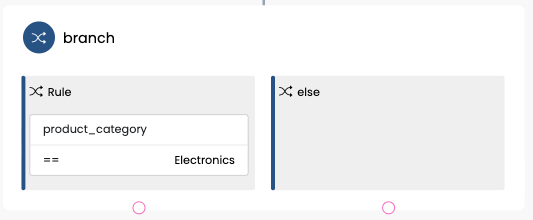
Use extraction fields in conditional logic to control conversation flow:
# Check if user selected a specific option
tracker_api.get_slot("product_category") == "Electronics"
Custom Scripts
Access extraction fields in custom Python scripts using the tracker API:
# Get a slot value
email = tracker_api.get_slot("user_email")

# Set a slot value
tracker_api.set_slot("confirmation_sent", True)

# Check if slot exists
if tracker_api.get_slot("phone_number"):
    # Do something with the phone number
    pass
Reading Slots After Setting Them
When you set a slot value in your script and need to read it back immediately, use the async versions of the methods to ensure you get the updated value:
# ❌ Wrong: May return old value or None
tracker_api.set_slot("status", "active")
status = tracker_api.get_slot("status")  # Might be stale!

# ✅ Correct: Always returns the current value
tracker_api.set_slot("status", "active")
status = await tracker_api.a_get_slot("status")  # Fresh data!
Why this matters: When you set a slot, the update is processed asynchronously in the background. The a_get_slot() method (note the a_ prefix) waits for the update to complete before returning the value.
Quick reference:
| What you need | Method to use |
|---|---|
| Read a slot (no recent writes) | tracker_api.get_slot("name") |
| Read a slot (after setting it) | await tracker_api.a_get_slot("name") |
| Read all slots (after writes) | await tracker_api.a_slots |
| Set a slot | tracker_api.set_slot("name", value) |
Example: Setting and using a calculated value
async def run(tracker_api, ...):
    # Calculate a value
    total_price = quantity * unit_price

    # Set it
    tracker_api.set_slot("total_price", total_price)

    # Use the async method to read it back
    saved_total = await tracker_api.a_get_slot("total_price")

    # Now you can use it reliably
    if saved_total > 1000:
        tracker_api.set_slot("high_value_order", True)
Tip: If you're only reading slots and not setting any, the regular
get_slot()method works fine. Use the asynca_get_slot()method whenever you've made changes to slots in your script.
Best Practices
1. Use Descriptive Names
Choose clear, self-documenting names for your fields:
Good:
user_emailappointment_dateproduct_id
Avoid:
field1datatemp
2. Write Detailed Descriptions
The description is what the LLM uses to understand what to extract. Be explicit:
Good:
The user's preferred contact email address. Must be a valid email
format with @ symbol and domain. Example: user@example.com
Avoid:
Email
3. Provide Examples
Give the LLM concrete examples to improve extraction accuracy:
For dates:
2024-01-15
2023-12-31
2024-06-20
For product codes:
PROD-001
ITEM-12345
SKU-ABC-999
4. Use Validation Scripts Sparingly
Only add validation scripts when necessary. They add complexity and can slow down extraction. Use them for:
- Business-critical validations
- External API checks
- Complex rules that can't be expressed in the description
5. Choose the Right Data Type
Select the most appropriate data type for your data:
- Use
intorfloatfor numbers you'll perform calculations on - Use
dateordatetimefor temporal data you'll compare or sort - Use
boolfor yes/no decisions - Use
strfor everything else
6. Leverage Enums for Limited Choices
When users must choose from a fixed set of options, use enum mode:
Small
Medium
Large
Extra Large
This ensures the LLM only extracts valid options and prevents typos or variations.
7. Keep Process Descriptions Clear
In Form Nodes, write clear process descriptions that explain what you're collecting:
Good:
Collect the user's contact information including full name, email
address, and phone number for account registration and future communication.
Avoid:
Get info
Tip: See the Form Nodes section above for detailed examples of process names and descriptions for different use cases like appointments, registrations, and preferences.
Deleting Extraction Fields
To delete an extraction field:
- Navigate to Content → Flow → Extraction Fields
- Click on the field you want to delete
- Click the Delete button
Warning: If the extraction field is used in any nodes, you'll be prompted to confirm deletion. The system will show you:
- How many nodes use this field
- The node IDs where it's used
Upon confirmation, the field will be removed from all nodes and deleted permanently.
Related Documentation
- Flow - Learn about creating and managing flows
- Scripts - Write custom logic using extraction fields
- Form node - See how to use fields in Form Nodes
- Form Validation Scripts - Validate relationships between multiple fields