Post-Processing Scripts
TL;DR: Post-processing scripts allow you to transform, filter, or modify LLM-generated responses before they are sent to users. There are three modes: Default (for non-streamed responses), Streaming (per-chunk processing), and Advanced Streaming (full control over the event stream). Enable them in any LLM-enabled node by toggling "Post-Process Script" and selecting your mode when streaming is enabled.
Post-processing scripts give you programmatic control over bot responses after they are generated by the LLM but before they reach the user. This is useful for content filtering, formatting, adding dynamic elements, or implementing custom response logic.
Why Use Post-Processing Scripts?
Post-processing scripts enable you to:
- Filter content — Remove or replace unwanted words, phrases, or patterns
- Format responses — Apply consistent styling, add punctuation, or restructure text
- Add dynamic elements — Insert timestamps, user names, or contextual information
- Implement business logic — Apply company-specific rules to responses
- Transform data — Convert formats, translate terms, or normalize output
- Quality control — Validate response length, check for required elements
Enabling Post-Processing
To enable post-processing on a node:
- Open any LLM-enabled node (Response, Knowledge, Form, or Action with LLM enabled)
- Toggle the Post-Process Script switch to enable it
- Write your processing logic in the code editor that appears
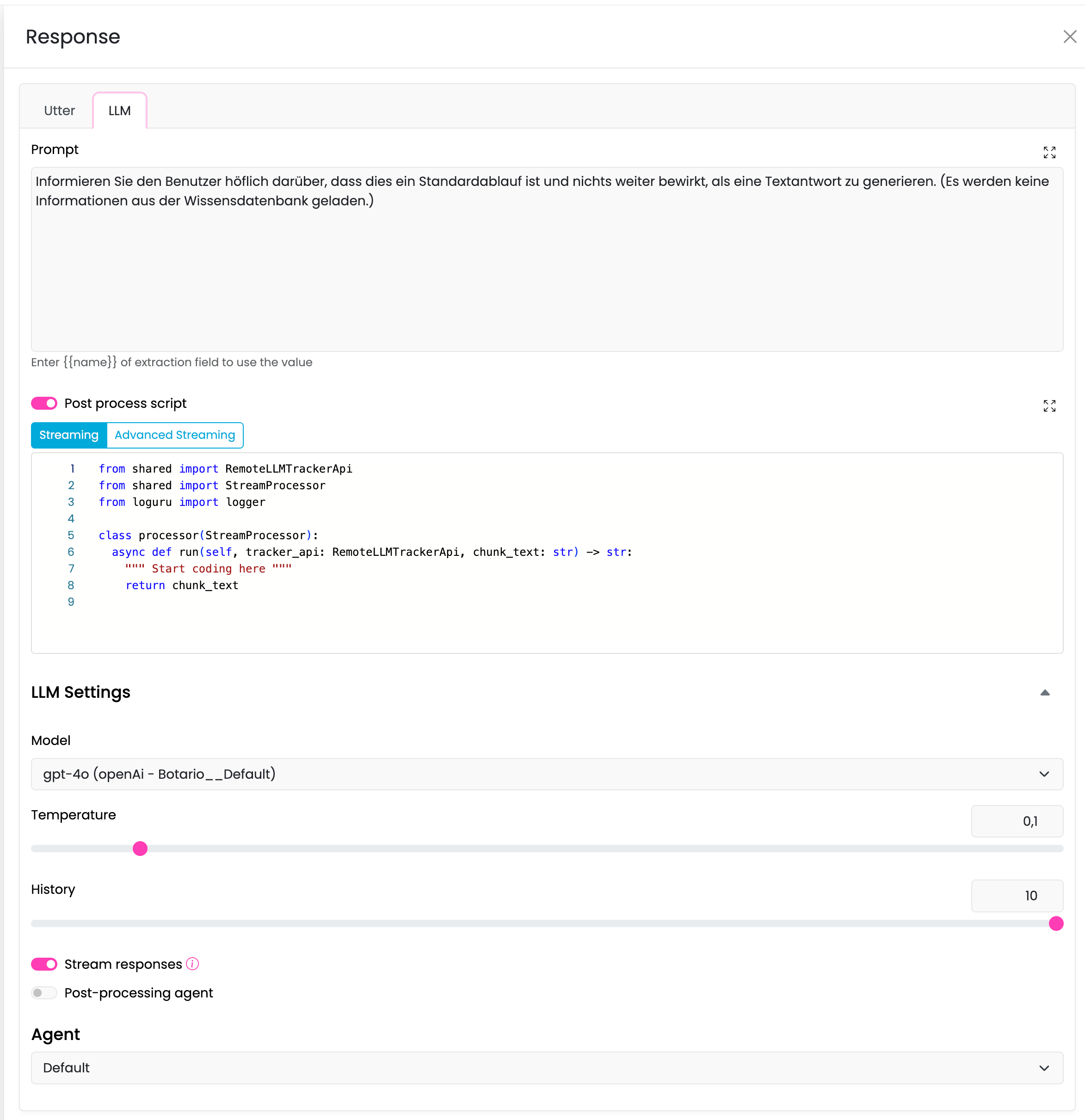
Note: Post-processing scripts are node-specific. Each node has its own script that only applies to responses generated by that node.
Post-Processing Modes
When Streaming is enabled for a node, you can choose between different post-processing modes. Each mode offers a different level of control over how responses are processed.
Important: These post-processing modes currently apply to standard LLM streaming (
stream_utter). Structured streaming viaa_stream_call_response_model(...)+stream_response_model(...)does not execute post-processing scripts (default,stream, oradvanced_stream) yet.
Default Mode (Non-Streaming)
When to use: When streaming is disabled, or when you need to process the complete response at once.
In default mode, your script receives the entire response after the LLM has finished generating it. This is the simplest approach and works well when you need to see the full context before making modifications.
Script Template:
from shared import RemoteLLMTrackerApi
from shared import Processor
from typing import Optional
from loguru import logger

class processor(Processor):
    async def run(self, tracker_api: RemoteLLMTrackerApi, value: str) -> Optional[str]:
        """
        Process the complete LLM response.

        Args:
            tracker_api: API for accessing conversation state, slots, and history
            value: The complete response text from the LLM

        Returns:
            The modified response text, or None to use the original
        """
        # Example: Add a signature to every response
        processed = value + "\n\n— Your Assistant"
        return processed
Key Points:
- Receives the complete response as a single string
- Return the modified string, or
Noneto keep the original - Has full access to
tracker_apifor slots, history, and LLM calls - Best for transformations that need the full context
Example Use Cases:
- Adding signatures or disclaimers
- Content filtering with context awareness
- Response validation and correction
- Format conversions (markdown to plain text, etc.)
Streaming Mode
When to use: When streaming is enabled and you want to process each chunk as it arrives while maintaining low latency.
In streaming mode, your script is called for each chunk of text as it's generated by the LLM. This allows you to process and display responses in real-time with minimal delay.
To use streaming mode:
- Enable Streaming in the LLM Settings
- Enable Post-Process Script
- Select Streaming from the mode toggle

Script Template:
from shared import RemoteLLMTrackerApi
from shared import StreamProcessor
from loguru import logger

class processor(StreamProcessor):
    async def run(self, tracker_api: RemoteLLMTrackerApi, chunk_text: str) -> str:
        """
        Process each streaming chunk as it arrives.

        Args:
            tracker_api: API for accessing conversation state
            chunk_text: A single chunk of text from the streaming response

        Returns:
            The processed chunk text
        """
        # Example: Convert to uppercase
        return chunk_text.upper()
Key Points:
- Called once per chunk (can reach from a single token to a couple words - usually a single token)
- Must return quickly to maintain streaming performance
- Limited context — you only see one chunk at a time
- Changes are immediately visible to the user
Example Use Cases:
- Simple text transformations (case changes, character replacements)
- Real-time word filtering
- Adding prefixes or formatting to chunks
- Lightweight content sanitization
Warning: Avoid heavy processing in streaming mode. Each chunk should be processed in milliseconds to maintain a smooth streaming experience.
Advanced Streaming Mode
When to use: When you need full control over the streaming process, including buffering, re-chunking, or complex transformations that span multiple chunks.
In advanced streaming mode, your script receives the entire event stream as an async generator. You have complete control over what events are yielded to the user and when.
To use advanced streaming mode:
- Enable Streaming in the LLM Settings
- Enable Post-Process Script
- Select Advanced Streaming from the mode toggle

Script Template:
from shared import RemoteLLMTrackerApi, LLMStreamedUtteranceRunningEventPayload
from shared import AdvancedStreamProcessor
from typing import AsyncGenerator

class processor(AdvancedStreamProcessor):
    async def run(
        self,
        tracker_api: RemoteLLMTrackerApi,
        event_stream: AsyncGenerator
    ) -> AsyncGenerator:
        """
        Process the complete streaming event stream.

        Args:
            tracker_api: API for accessing conversation state
            event_stream: Async generator yielding streaming events

        Yields:
            Modified events to send to the user
        """
        complete_text = ""

        async for event in event_stream:
            if isinstance(event.payload, LLMStreamedUtteranceRunningEventPayload):
                if event.payload.text is not None:
                    # Manipulate event.payload.text to alter the response
                    complete_text += event.payload.text

                    # Example: Buffer until we have a complete sentence
                    # then yield all at once

            # Yield the event to send it to the user
            yield event
Key Points:
- Full control over the event stream
- Can buffer, delay, or modify events
- Can see the entire response as it builds
- More complex but extremely powerful
Example Use Cases:
Sentence-by-Sentence Streaming
Buffer chunks until you have a complete sentence, then release:
from shared import RemoteLLMTrackerApi, LLMStreamedUtteranceRunningEventPayload
from shared import AdvancedStreamProcessor
from typing import AsyncGenerator

class processor(AdvancedStreamProcessor):
    async def run(self, tracker_api: RemoteLLMTrackerApi, event_stream: AsyncGenerator) -> AsyncGenerator:
        buffer = ""
        sentence_endings = {'.', '!', '?'}

        async for event in event_stream:
            if isinstance(event.payload, LLMStreamedUtteranceRunningEventPayload):
                if event.payload.text is not None:
                    buffer += event.payload.text

                    # Check if we have a complete sentence
                    while any(end in buffer for end in sentence_endings):
                        # Find the first sentence ending
                        min_idx = len(buffer)
                        for end in sentence_endings:
                            idx = buffer.find(end)
                            if idx != -1 and idx < min_idx:
                                min_idx = idx

                        # Yield the complete sentence
                        sentence = buffer[:min_idx + 1]
                        buffer = buffer[min_idx + 1:]

                        event.payload.text = sentence
                        yield event
                        continue

                    # Don't yield incomplete sentences
                    continue

            yield event
Content Filtering with Context
from shared import RemoteLLMTrackerApi, LLMStreamedUtteranceRunningEventPayload
from shared import AdvancedStreamProcessor
from typing import AsyncGenerator

class processor(AdvancedStreamProcessor):
    async def run(self, tracker_api: RemoteLLMTrackerApi, event_stream: AsyncGenerator) -> AsyncGenerator:
        forbidden_phrases = ["confidential", "internal only", "do not share"]
        buffer = ""

        async for event in event_stream:
            if isinstance(event.payload, LLMStreamedUtteranceRunningEventPayload):
                if event.payload.text is not None:
                    buffer += event.payload.text

                    # Check for forbidden phrases in the accumulated text
                    for phrase in forbidden_phrases:
                        if phrase.lower() in buffer.lower():
                            # Replace the phrase
                            buffer = buffer.lower().replace(phrase.lower(), "[REDACTED]")

                    event.payload.text = buffer
                    buffer = ""

            yield event
Accessing Conversation Context
All post-processing scripts have access to the tracker_api object, which provides:
Get Slot Values
# Get a specific slot value
user_name = tracker_api.get_slot("user_name")

# Get all slots
all_slots = tracker_api.slots
Get Conversation History
# Get conversation history
history = tracker_api.get_history()

# Get the latest user message
latest_message = tracker_api.get_latest_user_message()
Make Additional LLM Calls
# Make an additional LLM call if needed
response = await tracker_api.a_call_llm(
    messages=[
        {"role": "system", "content": "You are a helpful assistant."},
        {"role": "user", "content": "Summarize this: " + value}
    ]
)
Comparison of Modes
| Feature | Default | Streaming | Advanced Streaming |
|---|---|---|---|
| Streaming support | No | Yes | Yes |
| Receives | Complete text | Single chunk | Event stream |
| Latency impact | High (waits for full response) | Low | Variable (your control) |
| Context available | Full response | Single chunk | Accumulating response |
| Complexity | Simple | Simple | Complex |
| Use case | Full-text transformations | Per-chunk processing | Custom streaming logic |
Best Practices
1. Keep It Fast
Post-processing adds latency. Keep your scripts efficient:
# Good: Simple, fast operation
return value.replace("AI", "Assistant")

# Avoid: Heavy operations in streaming mode
# response = await some_slow_api_call(value)  # Don't do this per chunk!
2. Handle Edge Cases
Always consider empty or unexpected input:
async def run(self, tracker_api, value: str) -> Optional[str]:
    if not value or not value.strip():
        return value

    # Your processing logic here
    return processed_value
3. Test Thoroughly
Test your scripts with various inputs:
- Empty responses
- Very long responses
- Responses with special characters
- Responses in different languages
4. Choose the Right Mode
- Use Default when you need full context and streaming isn't critical
- Use Streaming for simple, fast per-chunk operations
- Use Advanced Streaming only when you need complex streaming control
Supported Nodes
Post-processing scripts are available on all LLM-enabled nodes:
| Node Type | Default Mode | Streaming Mode | Advanced Streaming |
|---|---|---|---|
| Response (LLM type) | ✅ | ✅ | ✅ |
| Knowledge (RAG) | ✅ | ✅ | ✅ |
| Form | ✅ | ✅ | ❌ |
| Action (LLM enabled) | ✅ | ❌ | ❌ |
Note: Action nodes only support default mode post-processing, as they typically handle responses programmatically rather than streaming to users.
Post-Processing Agent (Bot-Level)
In addition to node-level post-processing scripts, you can enable a Post-Processing Agent at the bot level. This agent runs on all LLM responses across all nodes and is typically used for safety monitoring and content moderation.
To enable the post-processing agent:
- Open the LLM Settings in any node
- Toggle Post-Processing Agent Enabled
The post-processing agent:
- Runs after node-level post-processing scripts
- Can block unsafe responses and provide alternatives
- Is configured in the Scripts section under
agents/post_processing/
Note: When the Post-Processing Agent is enabled, streaming is automatically disabled for that node to allow the agent to evaluate the complete response.
Troubleshooting
Script Not Running
- Ensure Post-Process Script toggle is enabled
- Check that your script follows the correct template structure
- Deploy your changes (scripts are deployed with the bot)
Streaming Mode Not Available
- Enable Streaming in the LLM Settings first
- The mode selector only appears when both streaming and post-process script are enabled
Performance Issues
- Avoid heavy processing in streaming modes
- Use default mode for complex transformations
- Check for infinite loops in advanced streaming mode
Response Not Modified
- Ensure your
runmethod returns a value (notNoneunless intentional) - Check for exceptions in your code (view logs for errors)
- Verify the script is saved and deployed
Related Documentation
- Flow — Learn about creating flows and nodes
- Scripts — Manage custom scripts and agents
- Error Flow — Handle errors in your bot